Release 8.6
Release 8.6
Highlights
Empower 8.6 delivers substantial usability, security, and administrative enhancements, including SSO login improvements, automated task completion at release, expanded BOM controls, stricter lifecycle validation, and enhanced document access and integrity. This release also introduces OAuthbased email delivery, workflow safeguards, major upgrades to the CAD Viewer, enhanced training and search capabilities, and numerous qualityoflife updates across Items, BOMs, Documents, and system administration.
SSO Login and LDAP Enhancements
A new Log in with SSO button appears for SAML SSO-enabled Empower instances. For SSO-enabled users, the first login (or any login after clearing cache) prompts for SSO credentials, while subsequent logins automatically redirect users to Empower without requiring credentials again.
Impact on Non-SSO Users
- The initial login screen now immediately presents the following fields: User Name or Email, Authentication System/Method, and Password.
- After entering a username or email address, the authentication method is automatically updated
- When the user selects “Empower” or “Omnify” as an Authentication System/Method, a “Forget password?” link appears.
Impact on LDAP Users
- On the Administrators > Users page, administrators can specify a domain for each user and the LDAP method.
- Note: Administrators for multi-domain customers must manually configure each user's domain.
Task Enhancements
Release-Triggered Task Completion
When an object is released, tasks that reference it in other objects will be marked as 100% Complete.
- When adding or editing a task, users can now check a new box labeled Automate Task, to configure the task for completion on release.
- Within the object release page, a new table labeled Mark Related Tasks as Complete after release appears, displaying all objects whose tasks reference the release item.
- Before releasing the object, users can manually check the tasks to mark as 100% Complete.
- Tasks with child tasks are not eligible to be marked as 100% Complete.
Auto‑Set Task Start and Finish Dates
- New tasks with no Start Date are assigned the task creation date as the Start Date.
- Tasks with no specified Finish Date will be assigned the current date when the user marks the task as 100% complete.
Replace Items on BOMs: Display Change Admin Settings
Empower users can now display the Change Administrator Settings when selecting a change to replace items on a BOM.
- Within the Replace on BOMs side panel (the Items > Where Used page), users can select a Change and click Show Change Settings to display the administrator configured behaviors associated with that specific Change Type.
- Because different Change Types may define different New Revision behaviors and Rollup defaults (configured in Administrator > Change/ECO Options > Types), the system displays the appropriate settings only after the user selects a Change.
- The Show Change Settings button is designed for cases where users manually enter a Change number and then request the corresponding administrator settings.
- The five change administrator settings covered are Simultaneous Changes/ECOs, Pending Items, Draft Items, New Revision, and Rollup.
- A green checkmark icon signifies that the behavior in the setting is enabled.
- A yellow exclamation mark signifies a warning before proceeding, but that the behavior is permitted.
- A red X signifies that it is disabled or restricted.
Documents Enhancements
File Upload Progress Bar: File uploads now display a progress bar, giving users a visual indicator that an upload is in progress.
Checksum for Document Upload
Empower now supports checksum-based file integrity validation during uploads.
- This feature is supported in the following workflows:
- Uploading a file as a document to an object
- Checking in a document within an object
- Adding a document while creating a new object
- Uploading a file when adding a document through Document Changes
- Checking in a file when adding a modification in Document Changes
- HTTPS is required to support this feature.
Document Access Control
Document Access now follows a prohibit-by-default model. User Roles no longer have automatic access to Document Types.
- Administrators must now create Allow rules to grant access to Document Types, Vaults, or Check-In/Check-Out operations for each Permission Group.
- Existing Prohibit rules are automatically converted to the new Allow rule format. This conversion preserves the user’s established access behavior.
- A warning message now appears on the Empower Server Home Page guiding Administrators to review their Permission Groups and confirm that the newly converted access rules still match their intended design.
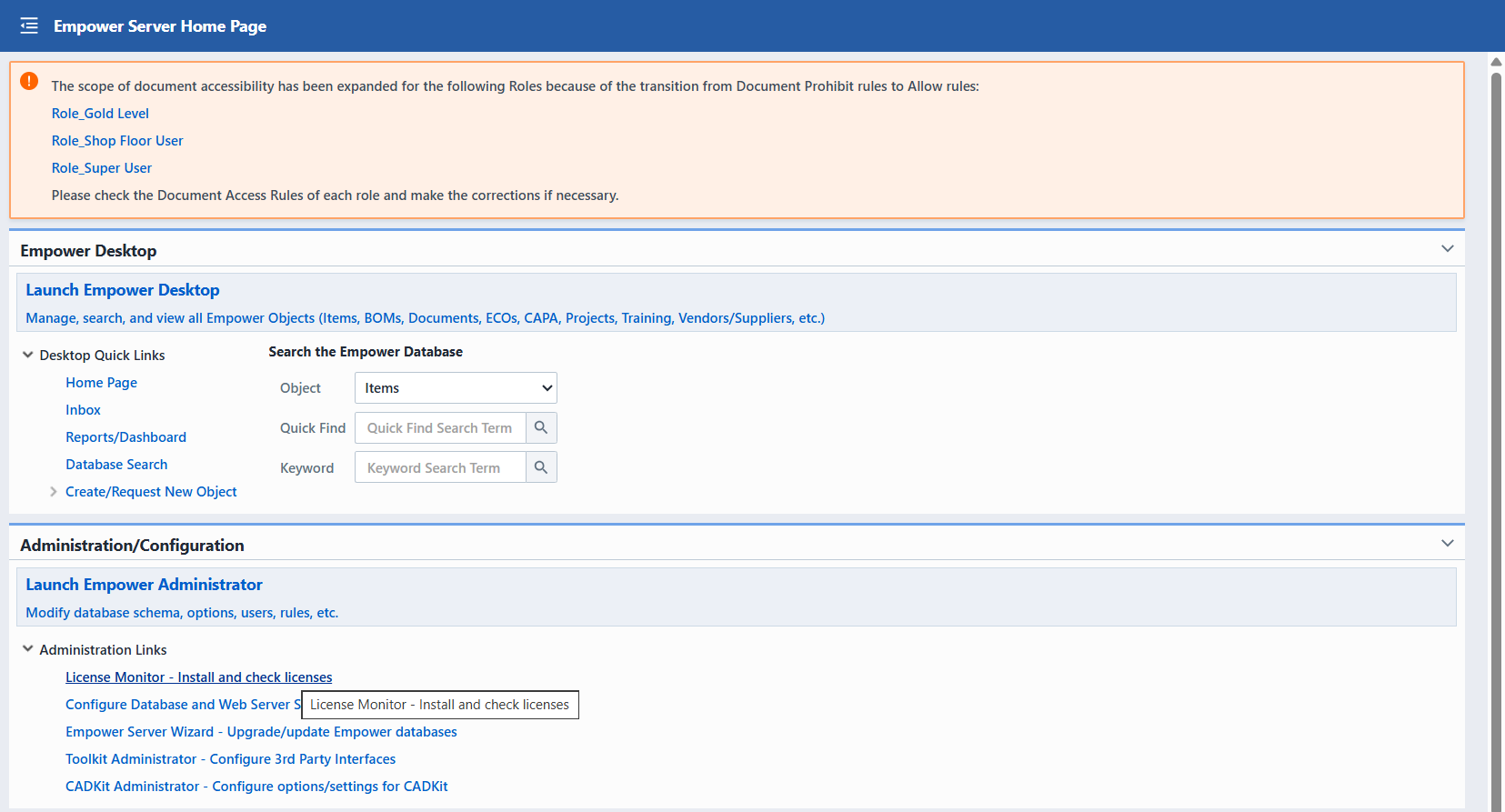
Recommended Administrator Review After Test System Upgrade:
- Review any warning messages that appear after upgrade.
- Adjust Role and Permission Group configurations if needed.
- Conduct user testing to validate that both prohibited and allowed Document Types behave as expected.
Guidance for Users Previously on Empower v8.4 or Newer:
- Are you currently on Empower v8.4.x or newer?
- Does any User Role include multiple Permission Groups?
- Do any of those groups contain Document Prohibit rules?
- If yes to all three, pay close attention to any warning messages in the Test system after the upgrade. If no messages appear, no conflicts were detected, but user testing is still recommended.
For more information, check out our updated Field Access Rules section in our updated Permissions page.
Document Check In/Check Out Enhancements
- When checking in a document, Empower now displays the File name and Title in the Check-In Document side panel. The corresponding document change row is also clearly highlighted on the Document Changes page.
- When a document is checked out, a new Check Out By column appears within the Document page table.
- The name entered represents the user who checked out the document.
- A new Undo Check out command appears in the Actions section. The button is available to the user who originally checked out the file and has the permission “Can check-out/in vaulted files and undo their own check-outs,” or to a user who has the new “Can undo other users’ document check-outs.”
Items/Parts/BOMs Enhancements
Item Revision Creation Date
- Within the Items > Revisions page, the attribute Creation Date replaces the previous Date/Time within the revision table.
- Creation Date signifies the date and time the revision was created. Creation Date also appears in the following feature:
- A new email smart tag labeled {!RevCreationDate}
- Creation Date now appears as a Database search field and as a field for Item reports in Empower Reporter.
- The GET Item Revisions endpoint now includes Creation Date within its response.
Simplified Display for Large BOMs
- Admins can specify a threshold for BOM lines above which a BOM displays in simplified view.
- In Empower Administrator > Global Options, select Use simplified BOM display page and enter a number (default: 5000 lines).
- After selecting Expand All Levels, users are redirected to a new page that displays the fully exploded BOM.
Stricter Lifecycle Validation for BOM Integrity
- Empower now enforces lifecycle weight checks between affected items and their parent assemblies during Change Order release, even if the parent is not on the change.
- This prevents scenarios where an item moves to Obsolete while its parent remains in Production, ensuring BOM consistency and reducing the risk of manufacturing errors.
- The BOM Item Lifecycle Checks report remains unchanged.
BOM Loops Management
- Empower now ceases BOM expansion when a BOM loop (alternatively called a recursive BOM) is detected.
- Expansion ceases when the user is expanding the entire BOM or expanding a subassembly within a BOM.
- A red error message now appears, displaying each BOM loop hierarchy by Part Number.
- When in Maintenance Mode, a new Clear Temp Table button lets administrators clear the temporary table, preventing system performance issues caused by BOM loops that consume excessive memory.
Reference Designator Dislay and Import Enhancements
- In the Parts List/BOM of an item, a new icon toggles the Refdes column between expanded (R1, R2, R3, R4, R6) and condensed (R1–R4, R6).
- During BOM import, users can select how values in the reference designator column should first be displayed (as-is, expanded, or condensed).
Where Used Enhancements
- BOM and Where Used pages now support displaying each item’s Business Unit and Projects, matching the item info already available elsewhere in Empower.
- Users can add Business Unit and Projects to their BOM and Where Used pages by adding them as display fields within User Preferences > BOM Options
- The count badge in the Items > Where Used page now displays the number of active revision parent items. Items displayed in the Where Used table may vary if the Include All Item Revs and the Include All BOM Revs are selected.
BOM Export
- When performing a Quick BOM Export, a new checkbox labeled "Include parent item (Level 0)" appears in the Levels section.
- Checking this new option includes the parent item within the export.
- Bug Fix: An issue where a user can unintentionally replace or after another user’s BOM Export template by saving a template with the same name has been resolved. Empower records all template changes and their owners.
Change/ECO: BOM Redline Report
- Empower users can now export the BOM Redline report.
- The BOM Redline Report now contains lifecycle information in the following locations:
- BOM Item/Summary now contains columns for Old Lifecycle and New Lifecycle.
- Original BOM now contains a Lifecycle column
- The Proposed (”To Be”) BOM now also contains a Lifecycle column
- Lifecycle is included when exporting the BOM Redline report.
Empower Support for OAuth and Email Delivery
OAuth Support for Microsoft Office 365
Empower customers can now configure Empower to send email using OAuth credentials. Administrators can set up by registering an application in Azure Active Directory and granting it the necessary permissions.
Note: Microsoft plans to retire Basic‑authenticated SMTP AUTH in Exchange Online, but its timelines have changed several times and may continue to evolve. Because the schedule is not fixed, customers should avoid relying on specific dates. To ensure uninterrupted email delivery, we recommend moving to OAuth 2.0 as soon as possible, as Basic authentication will eventually be fully discontinued. For the latest and most accurate information, always refer to Microsoft’s official announcements on the SMTP AUTH Basic Authentication retirement. For more details, see Microsoft’s official announcement.
Follow up announcement: Updated Exchange Online SMTP AUTH Basic Authentication Deprecation Timeline
Key Steps:
- Register an Azure AD application and obtain the Client ID and Tenant ID
- Generate a Client Secret and configure the required permissions.
- Grant the application FullAccess and SendAs permissions to the desired mailbox via Exchange Online PowerShell
- Configure Empower’s Email Settings to use OAuth Credentials under Authorization mode
For more information, check out the Empower OAuth and Microsoft Office 365 section in our updated Email Server page.
Empower Support for Gmail App Passwords
Empower now supports sending email through smtp.gmail.com using Gmail App Passwords, providing a secure authentication option for customers who continue to use Basic‑authenticated SMTP with Gmail.
- Gmail requires users enable 2‑Step Verification before creating an App Password.
- Once generated, the App Password can be entered directly into Empower’s Email Settings to authenticate SMTP messages.
Key Steps:
- Enable 2‑Step Verification for the Gmail account.
- Navigate to the Google Account settings and generate an App Password.
- Copy the generated password and paste it into the SMTP password field in Administrator > Email Settings.
- App Passwords can be created for multiple use cases; administrators should name each password according to its intended purpose.
For more information, check out the Empower and Gmail App Passwords (smtp.gmail.com) section in our updated Email Server page.
Additional Email Enhancements
Enhanced Email Configuration for Feedback Requests
- Administrators can now specify a custom email address when configuring the Send feedback to dropdown in Administrator > Email Alerts/Options > User Feedback.
- After selecting “a specific email address that the customer can enter”, administrators can enter the desired email address.
- When users click Send Feedback in Empower Desktop to request assistance, their message will be sent directly to this configured email address.
Administrator Feedback Update
- Feedback submitted by users with Administrator privileges is now always routed directly to arena-support@ptc.com, regardless of the selected Feedback setting.
- This prevents cases where an admin’s support request was previously redirected to themselves when the option “all Empower users with Admin privileges” was chosen.
Empower Reminder Digest Emails
- Users now receive a single digest email per reminder type instead of multiple individual notifications.
- Each digest highlights the most recent signoff or task reminders (up to 10–15 items) and includes a direct link to the Empower Inbox.
- The link is enhanced to navigate directly to the relevant section (e.g., Item Signoff, Change Signoff, Quality Signoff, or Tasks).
- This update reduces email overload for power users while keeping access to key assignments quick and easy.
Reminder Email Configuration Enhancements
- Administrators can now customize Days Prior to Due Date, Reminder Interval, and Include Signatory individually for each Reminder Email type.
- This enhancement introduces more granular control in Administrator > Email Alerts/Options > Reminder Emails, with the updated interface providing clearer, per‑template settings compared to previous versions.
Enhanced Password Security
- The System Configuration (Configure Server) password now uses PBKDF2‑HMAC‑SHA256 for stronger, FIPS 140‑2–compliant security, replacing the legacy MD5 algorithm.
- Note: Empower v8.6 no longer supports legacy MD5 hashed server configuration passwords, so systems using them may not authenticate after upgrade, and users must reset the server configuration password, use the default if needed, and create a new password using the FIPS compliant hashing algorithm.
Workflow Enhancements
New controls safeguard workflow integrity by managing disabled users and preventing approval bottlenecks.
- Disabled users are displayed in grey in all workflow views and templates.
- Editing workflows does not allow for removing disabled users.
- An administrator can remove disabled users in Admin > Workflow Options > Stages. Administrators can also change a disabled user's status to required or reviewed.
- A warning message appears when a disabled user is present in a stage or workflow template.
- Users can provision approvers to provide approval on behalf of disabled users.
- Workflow history now tracks when a user is added or removed, when a user’s workflow role is modified, and when a signature is added, removed, or modified. Also tracks the stage when a workflow signoff is approved.
- Removes email addresses of disabled users from email alert notifications.
- Added an option to include signatories in email alerts.
- Added an icon to manually clear an approval stage and log this action in history. (So, when someone adds a user to a previous stage, the user can quickly reset the approvals on successive stages.)
Added an icon button on the Object Signoff Page that allows users to manually clear a stage's signoffs.
Empower now recalculates the active stage when a stage signoff is cleared.
For conditional stages, a rejection of the required approval stage is still required to recalculate and activate the conditional stage.
Administrators can now enable or disable workflows in Administrator > Workflow Options > Workflows.
To change a workflow’s status, use the Enable Workflow or Disable Workflow icons.
Disabled workflows are clearly marked in the Workflow dropdown list with the text [disabled].
To remove disabled workflows from the dropdown list, uncheck the Include Disabled checkbox.
Proxy Server Support: CAD Viewer and Watermarking
On-Premise users (or users that must connect to external services through a proxy server) can now use the Empower CAD viewer and the Empower Watermarking feature without issue.
Watermarking Enhancements
Administrators can now create distinct watermark templates and assign a different template, along with its unique signature watermark, to each document type.
- Document Types (in Administrator > Document Options) now include a Watermark Template column that indicates each type's assigned watermark.
- Smart tags can now be applied to the watermark’s overlay.
- Attributes can now be added to the watermark’s header and footer.
Empower CAD Viewer
In addition to the Bounding Box, five tools appear in the main toolbar of the Empower CAD Viewer.
- Transform allows the user to move and rotate parts in global axis-aligned space or in a part’s local coordinate space.
- Model Opacity: The Model Opacity slider control allows you to adjust the entire model’s transparency in 10% increments
- Bounding Box mode is now selection-based, supporting single or multiple parts, automatically fitting to a single part’s local rotation, and allowing you to toggle it on or off to preview results and suppress transforms while making iterative adjustments.
- Bounding Region provides a world-space axis-aligned annotated envelope containing your selection with XYZ dimension labels in the model’s unit of measurement.
- Cutting Plane allows you to create an initial cutting plan (cross section) that is perpendicular to the X, Y, or Z axis and bisects the model according to its bounding region extents.
- Measurements provide the user with the ability to create point-to-point measurements.
- View Options Toolbar gives the user control over an array of six orthographic and two ISO preset views.
- Triangle Count indicates the number of triangles used in the CAD drawing. Triangles serve as a fundamental building block in 3D modeling.
- Better Together Combinations: The preceding features can be combined for greater utility—for example, Bounding Box and Bounding Region enhance visual clarity for locally rotated parts, and together with Measurements, they help verify distances and align parts for precise planar, single‑axis work.
For more information, check out our updated CAD Viewer Help Article.
Training Plan Enhancements
Training Start Date Improvements
- Trainers cannot choose a starting date earlier than today’s date.
- Updating the Start Date resets the Due Date as defined in Administrator > Training Options > Miscellaneous > Start/Due Dates.
- Users with a Complete status cannot change the Start Date or Due Date.
- When the Status is changed to Complete, the Complete Date defaults to the current date.
Training Revision Notes Enhancement
- When an item’s revision is updated via an ECO with “Trigger Retraining” checked, the system now records which trainable documents changed in the Training Items > Revision Item’s Notes field.
- Four types of trainable-document changes are recorded in the Revision Item’s Notes: adding a trainable document, modifying its fields, checking in a new file version, and removing a trainable document. Changes to non-trainable documents are not recorded.
- Direct revision updates without an ECO simply copy training and may retain existing notes.
Search Enhancements
- Document Search now allows users to filter by Trainable and Notes fields, enabling searches for trainable ("Yes") or non-trainable ("No") documents.
- To filter by Notes, users can select Notes as the search field and enter keywords or phrases to locate documents containing those terms.
- Trainable can now be configured as a search field in user preferences for Items, Changes, Quality, Projects, and Service object documents.
- In a Database Search, a new option labeled No Limit appears in the Total drop-down menu, allowing users to export the full search result set rather than only the records displayed on the current page.
Copy Rules on Group Creation
When adding a new group in User Permissions, Administrators can now decide whether to copy the Field Access Rules, Project Access Rules, Business Access Rules, and Data Access Policies from the original permission Group. All four options are checked by default.
Data Importer Enhancements
An issue where importing Item data with multiple Vendors resulted in only the first Vendor row being updated, while additional Vendor rows and the Vendor Part Note field were not updated has been resolved.
In addition to this fix, the following improvements have been made to both the basic and advanced modes for Data Importer.
Updated Import Options
The old Update vendor items based on Vendor Name checkbox has been replaced with two import choices:
Update/Add Vendor Items – Adds new Vendor Item rows from the import file. Keeps any existing Vendor Item records for the same Vendor.
Replace Vendor Items by Vendor Name – Replaces all Vendor Items for the selected Vendor with those from the import file.
The Replace Vendor Items based on Vendor Name option is now unchecked by default. This helps reduce accidental overwrites during imports.
Vendor Part Note Updates
The Vendor Part Note field now updates correctly when Vendor Item data is imported. This ensures descriptive notes are accurate and synchronized with imported data.
Empower Reporter: Signoff and Signoff Cycle Times
- Signoff Cycle Times and the Signoff Reports in Empower Reporter now contains a new Include Attribute checkbox.
- If checked, the user can select up to ten attributes for the report.
- Note that checking the Include Attribute checkbox narrows the scope of the report to one object type instead of a multi-object scope.
Empower API: Add Comments Endpoint
- Empower API developers can now add comments to Empower objects through a new POST endpoint.
- This endpoint supports adding comments to the following objects: Items, Changes, Quality, Projects, Vendors, Vendor Items, Training, Service Objects, Posts, and Tickets.
8.6.1 Service Pack
This 8.6.1 Service Pack includes a series of important bug fixes to enhance the overall functionality and user experience of our system.
Document Packager: Large File Support and Multi-User Reliability: The Document Packager now supports large file packaging via ZIP64 and isolates concurrent user sessions to prevent file conflicts across the BOM, Change, and Object Document Packagers and Trainable Document Download.
Item and ECO Editing: Fix for Errors Caused by Invalid Database Values: Resolved an issue where certain Items could not be edited, and the editing of items on the Affected Items page of an ECO caused a site error due to NULL values in item status fields.
Administrator Users: AutoFill and Created On Column Fix: Resolved an issue where browser AutoFill incorrectly populated fields when adding or editing users in the Administrator and restored the missing "Created On" column on the Users page.
Item Workflow: Signoff Permission Enforcement Fix: Resolved an issue where users who completed their workflow signoff stage could continue editing an Item until the page was refreshed, potentially allowing unauthorized modifications.
Quality/CAPA: Owner History Recording Fix: Resolved a long-standing issue where the Quality History page displayed an incorrect previous Owner name when the Owner field was changed.
Item Deletion: Fix for Failed Deletions After Upgrade: Resolved an issue where deleting Items silently failed after upgrading to v8.6 due to stricter SQL error handling, encountering a deprecated database table.
LDAP Login: Multi-Domain Authentication Fix: Resolved an issue where some users in multi-domain LDAP environments were unable to log in after upgrading to v8.6 due to an overly restrictive username pre-validation check.
Quality History: Custom Field Old Value Fix: Resolved an issue where the History page on Quality/CAPA items displayed an empty old value when custom fields were updated.
Training: Completion Status Fix for Recurring Rev Change Training: Resolved an issue where users who completed the Recurring Rev Change training were incorrectly displayed as "Not Started" despite having a recorded completion date.
User Preferences: Field Ordering Fix: Resolved an issue where custom field ordering in User Preferences randomly rearranged after saving.
Documents: Fix for Operations on Documents with NULL Titles: Resolved an issue where documents with NULL titles in the database could not be removed, edited, or checked in through a Change/ECO.
Administrator Auto Numbers: Fix for Hidden Auto Number Format Section: Resolved an issue where selecting "Default/Global" as the Auto Number on the Global Options > Auto Numbers page hid the "Auto Number Format" section.
Item Reports: Fix for Page Errors Caused by Non-Numeric Attribute Values: Resolved an issue where BOM Shortage Reports and Cost Rollup Reports caused page errors when calculated attributes contained non-numeric values.
8.6.2 Service Pack
This 8.6.2 Service Pack includes two important fixes to enhance the overall functionality and user experience of our system.
BOM Import: Fix for Reference Designators Incorrectly Flagged as Changed: Resolved an issue where importing a BOM into a Change/ECO flagged lines as changed, with no visible redlines, when reference designators in the import file used a different format (expanded or condensed) than the original BOM.
Data Importer: Restored Support for Importing Draft Service Objects: Resolved an issue where Service Objects in Draft status could not be imported using the Data Importer in basic or advanced mode.