3D CAD Viewer
3D CAD Viewer
Empower’s new 3D CAD Viewer supports viewing 3D files online in your browser. It currently supports STEP, STP, IGES, IGS, STL, GLTF, and PVZ files. This feature is available to all Empower objects that support document views.
License Requirement:
The 3D CAD Viewer requires the 3D Viewer license for your workspace. Check to see if you have this license in the Empower License Monitor. If not active, please talk with Empower Customer Support to add it. 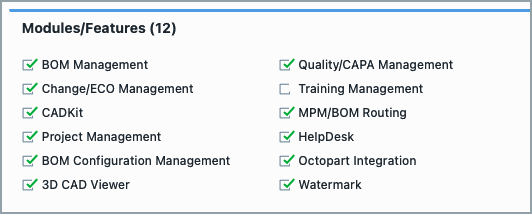
Viewing CAD Files
- Go to Documents page for an Empower Object.
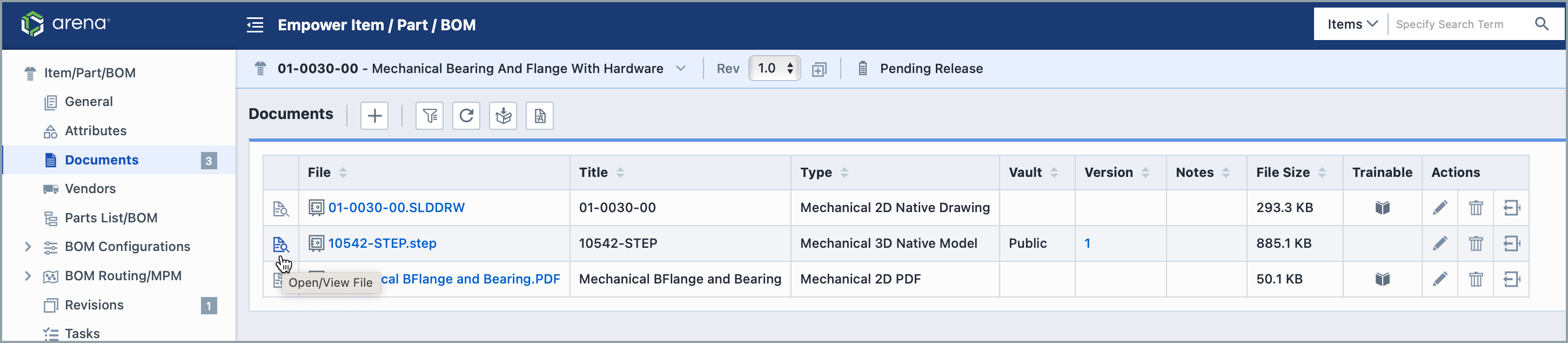
- Click on the "Open/View File" Icon. If the file is a supported CAD file, it will open in a new browser window named "3D CAD Viewer".
3D CAD Viewer
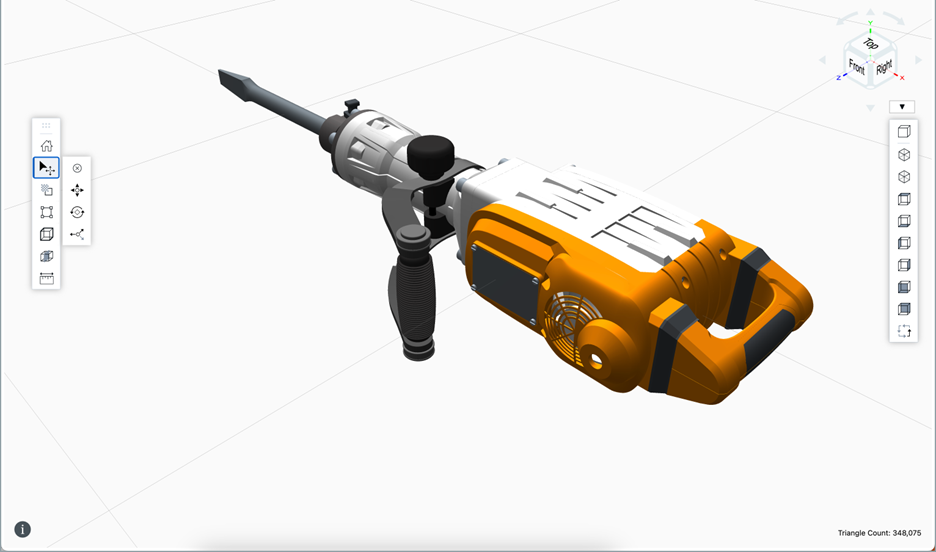 The 3D CAD Viewer includes the following features:
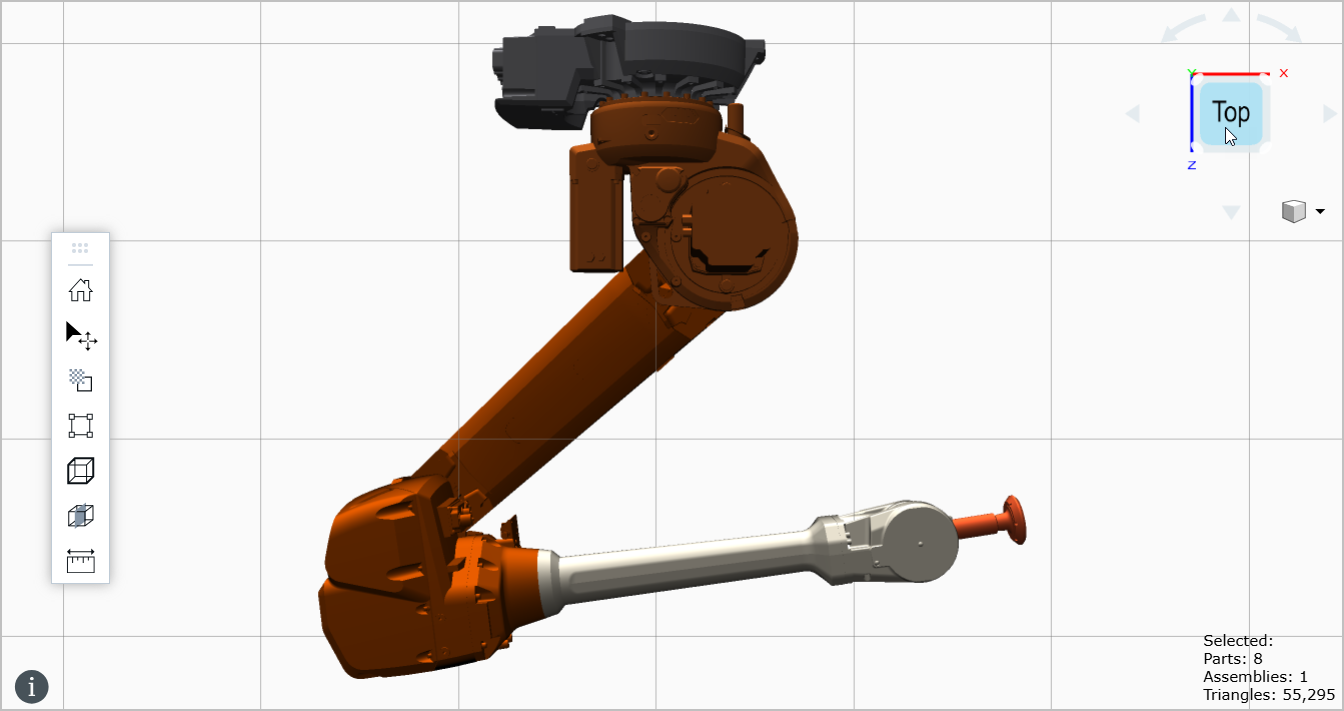
- 3D Viewing Canvas: See and zoom in on your design from all angles with a grid background to keep its dimensions clear. Move your designs by selecting and dragging them. Turn them by right-clicking and dragging.
- View Cube: Use the Back, Left, Top, Bottom, etc. buttons and arrows to automatically select the orthogonal view you want to view the model from.
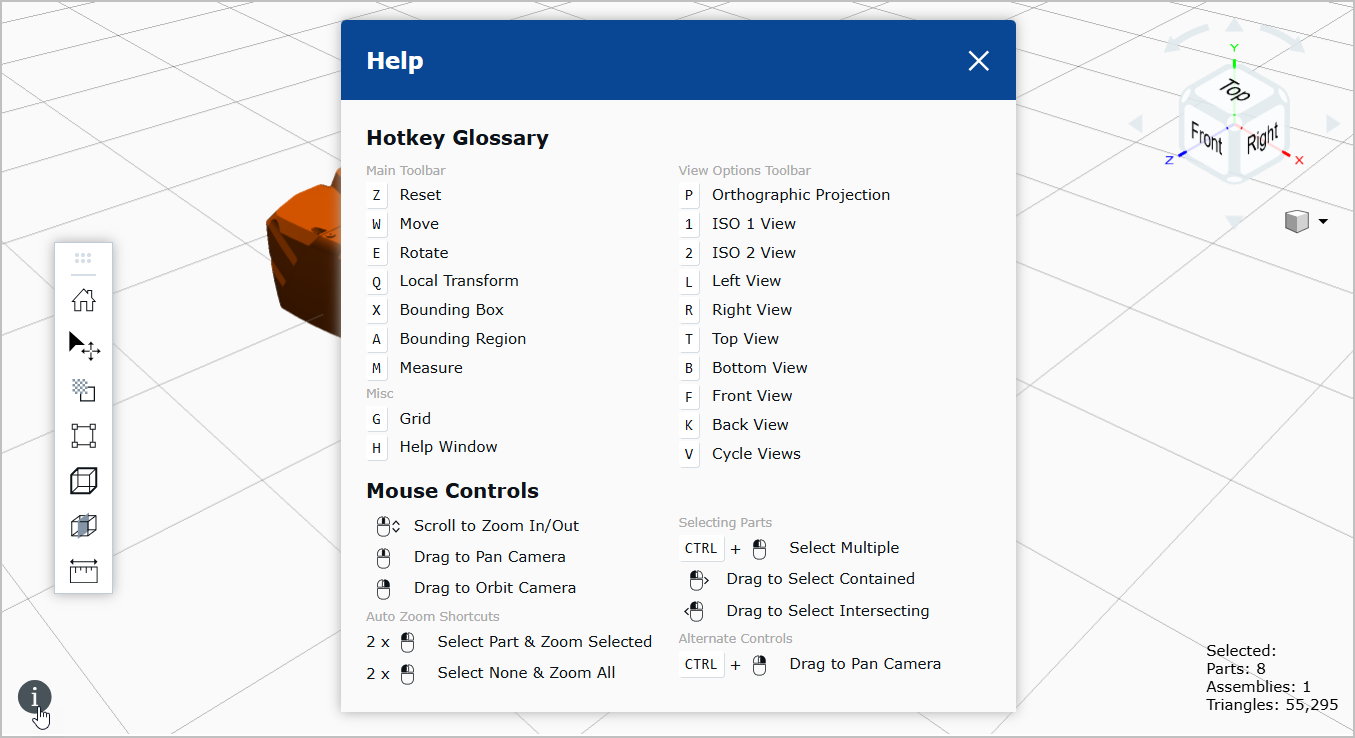
- "info" button: See all CAD-specific keyboard shortcuts and mouse commands from here.
- Menu Bar: The menu bar can be moved by clicking on the top portion and dragging it to a new destination. The following actions can be completed from this menu bar:
- Home: Reset the view of the CAD model to its original location, size, and view angle.
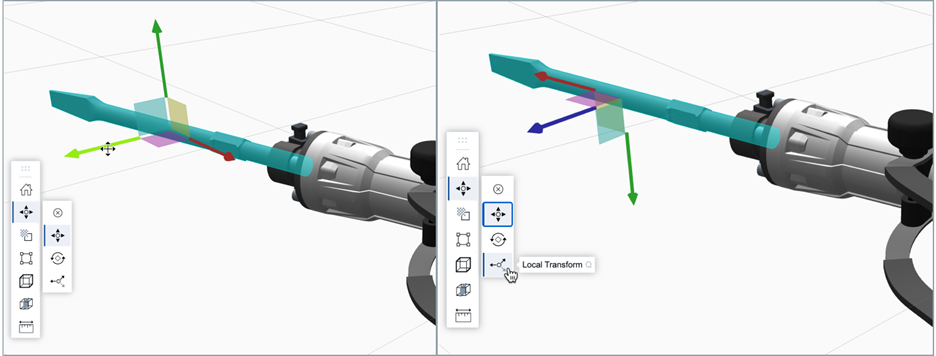
- Transform: Enables users to move and rotate parts in global or local space, reset them with animation, and precisely reposition components using incremental controls to isolate or stage assemblies.
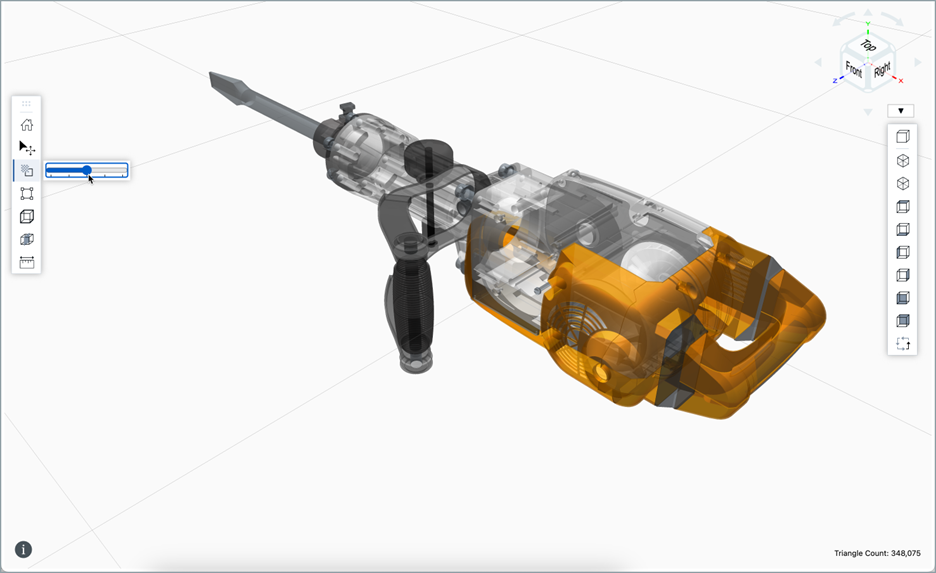
- Model Opacity: Allows users to adjust the model’s overall transparency in 10% increments.
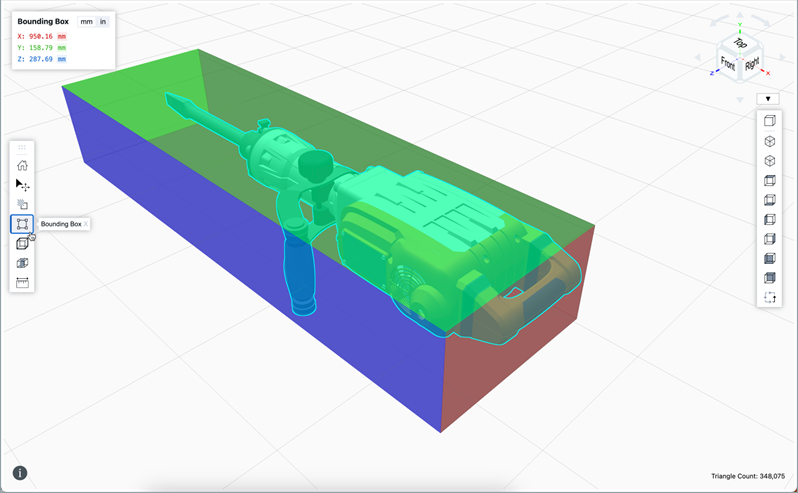
- Bounding Box: Reset your design and view it in the context of a bounding box. XYZ Measurements can be presented in millimeters or inches.
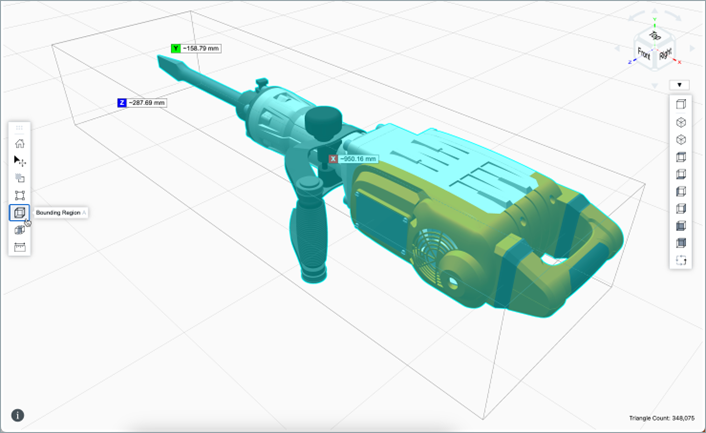
- Bounding Region: Displays a world‑space axis‑aligned region around selected parts with XYZ dimension labels for comparing local and global orientations.
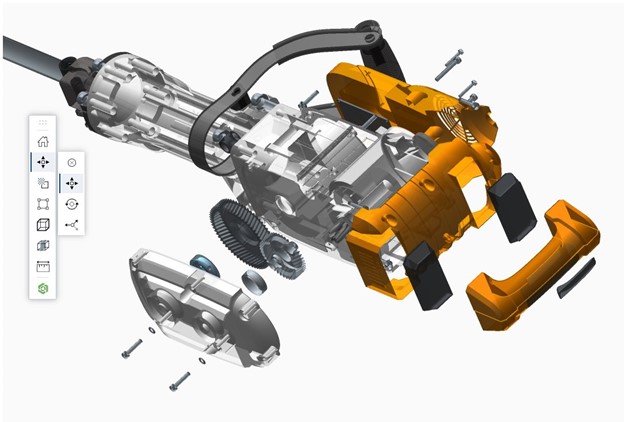
- Cutting Plane: Creates an adjustable cross‑section plane aligned to model axes that updates accurately as parts move or rotate.
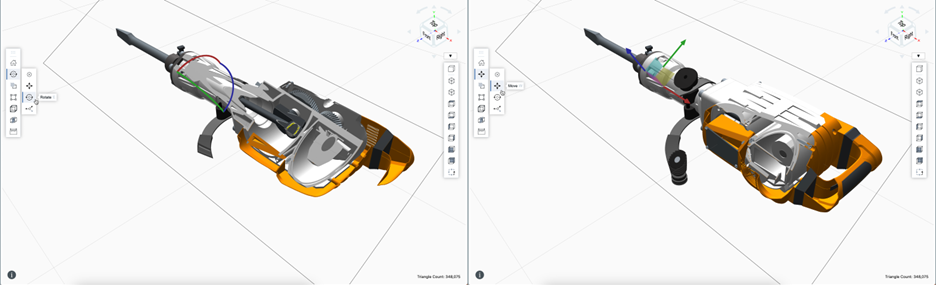 In the above screenshot, the user uses a cutting plane to bisect the model and the transform tool to rotate the bisected model.
 - Measure: Lets users create and manage point-to-point distance measurements with guided point placement and optional delta‑axis breakdowns.
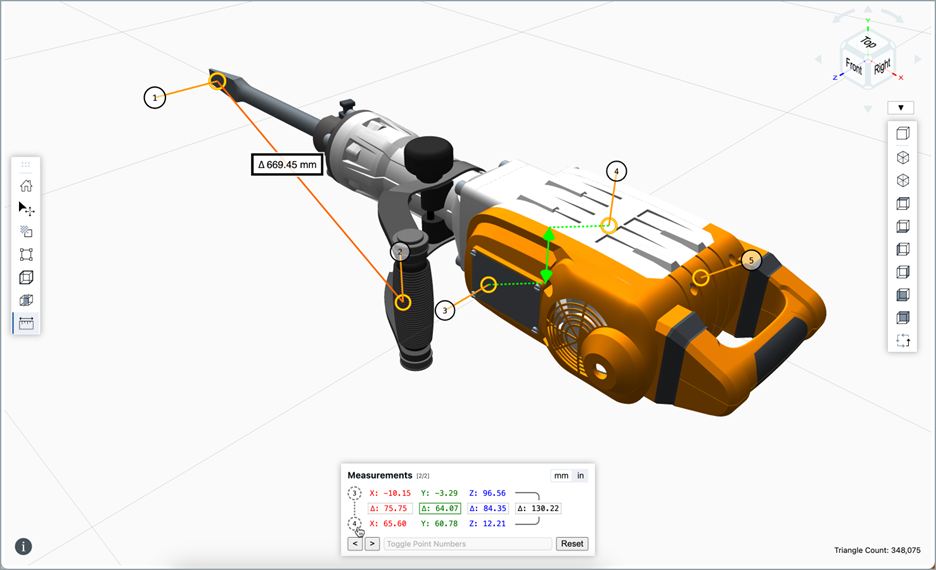
- Combine Features: The preceding features can be combined for greater utility. For example: Bounding Box and Bounding Region can provide additional visual insight into single-part selections that may have their own local rotations. Bounding Box and Bounding Region can be used with Measurements to confirm distances or align parts to world-space for solo-axis planar measurements.
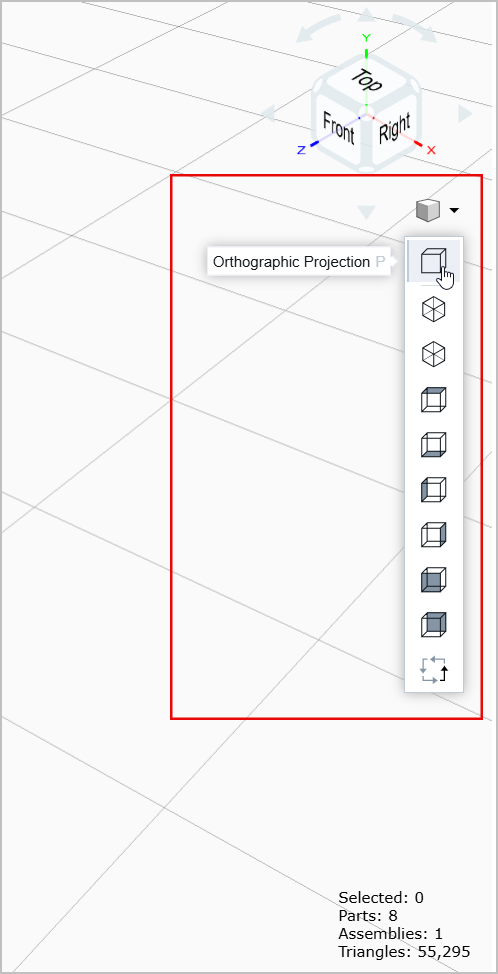
- View Options Toolbar: Includes quick access to six orthographic and two isometric preset views. It also provides the ability to toggle between Orthographic and Isometric projection. When positioning parts for precise alignment, comparing bounding boxes or bounding regions, or creating measurements, the orthographic view can help you visualize the scene with greater accuracy.
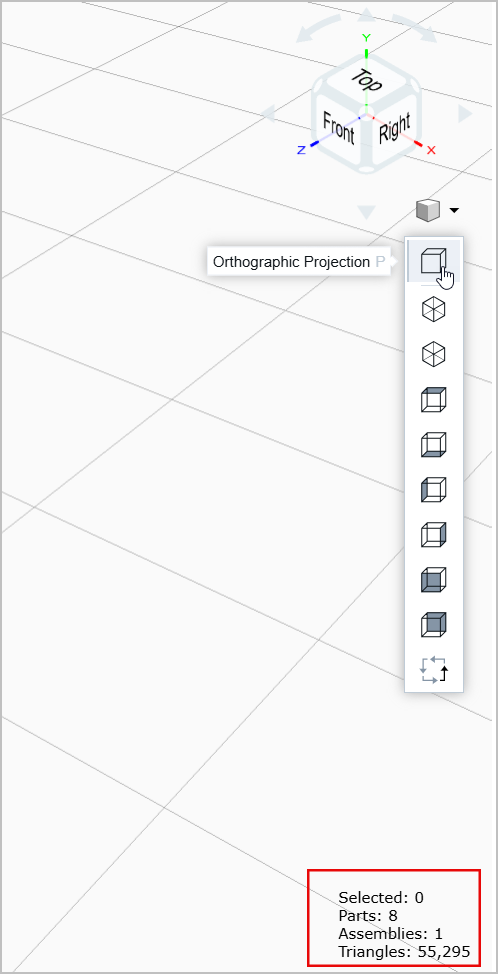
- Triangle Count: Located in the lower right-hand corner, this metric indicates the number of triangles used in the CAD drawing. Triangles serve as a fundamental building block in 3D modeling.
Workspace Rules
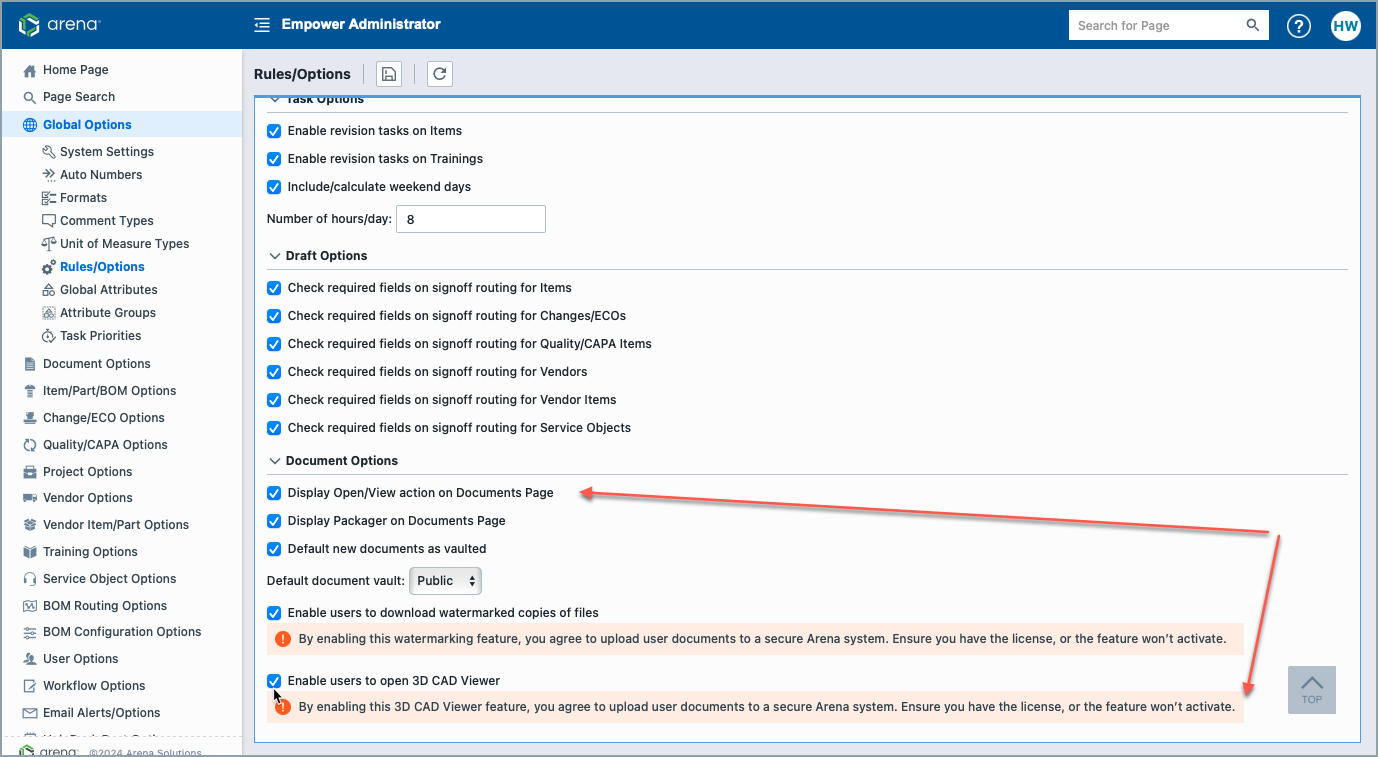
Administrators can set whether to allow the use of the 3D CAD viewer by going to Empower Administrator > Global Options > Rules/Options > Document Options. Select “Display Open/View action on Documents Page” and “Enable users to open 3D Viewer. When both rules are selected, a viewer icon will appear next to files that can be opened within the 3D CAD viewer.