Watermarking
Watermarking
Overview
Watermarking adds an overlay, header, and/or footer to documents in your workspace. Watermarks can include dynamic information pulled from the Part Revision you are viewing, such as the Part Number, Revision, Revision Effective From Date, Lifecycle, Pending Changes, and Print Date. Watermarks can be applied to .pdf, .doc, and .docx files, and watermarked documents are always generated as PDFs.
Here is an example of a watermark with an overlay, header, and footer that incorporate dynamic variables:

Note: If the Watermark Document button is not available on your Document page, your administrator may need to enable watermarking for your workspace or user group.
Note: Watermarking requires documents to be sent from your on-premises server to a secure Arena online system for processing.
Viewing a Watermarked File
To view a watermarked file, first go to the Document page for the Empower Object related to your File. All variables in the watermark will be generated from the Object Revision that you open the document from.
- Click on the Watermark Document button.
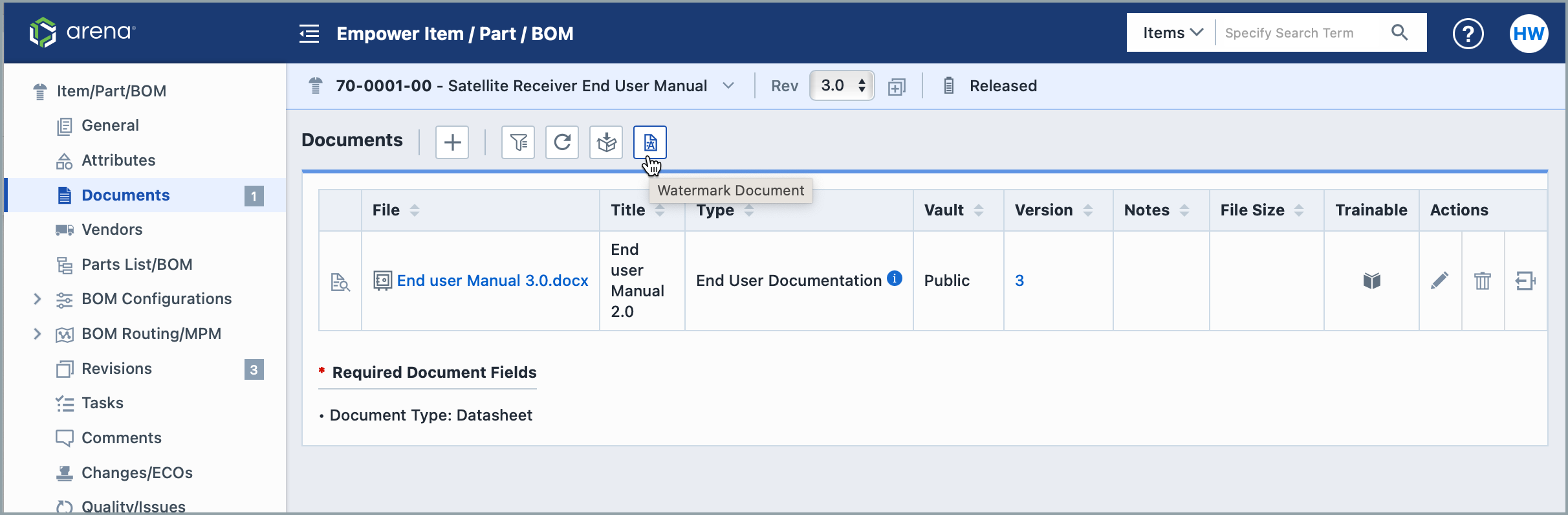
- On the next screen, select the documents that you would like to watermark. When selecting one document, the generated watermarked file will be a PDF. When selecting multiple documents, the generated file will be ZIP and include PDFs.
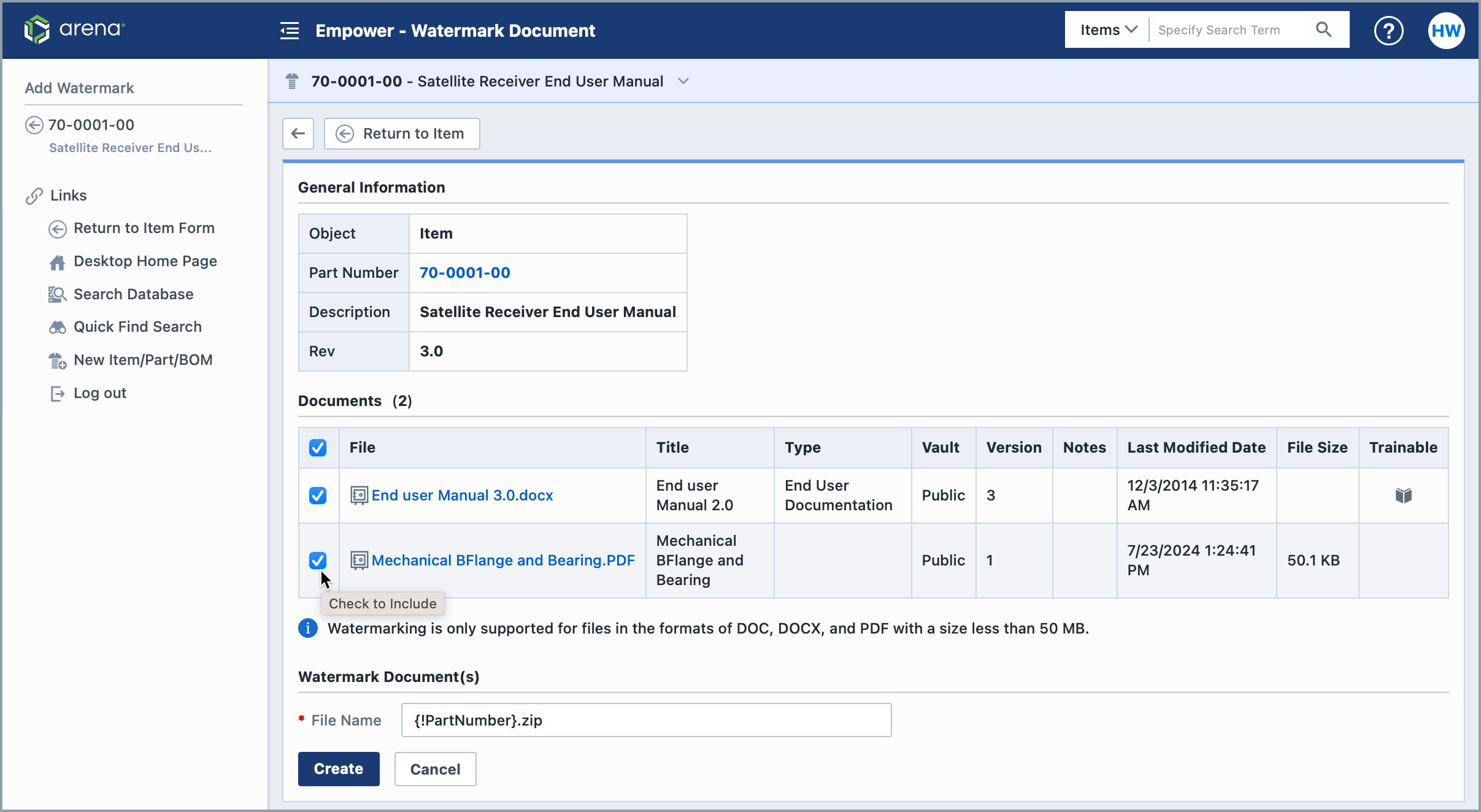
- Provide a File Name for your Watermark Document. When selecting more than one document, you can name the ZIP file. All documents within that ZIP file will keep their file's original names.
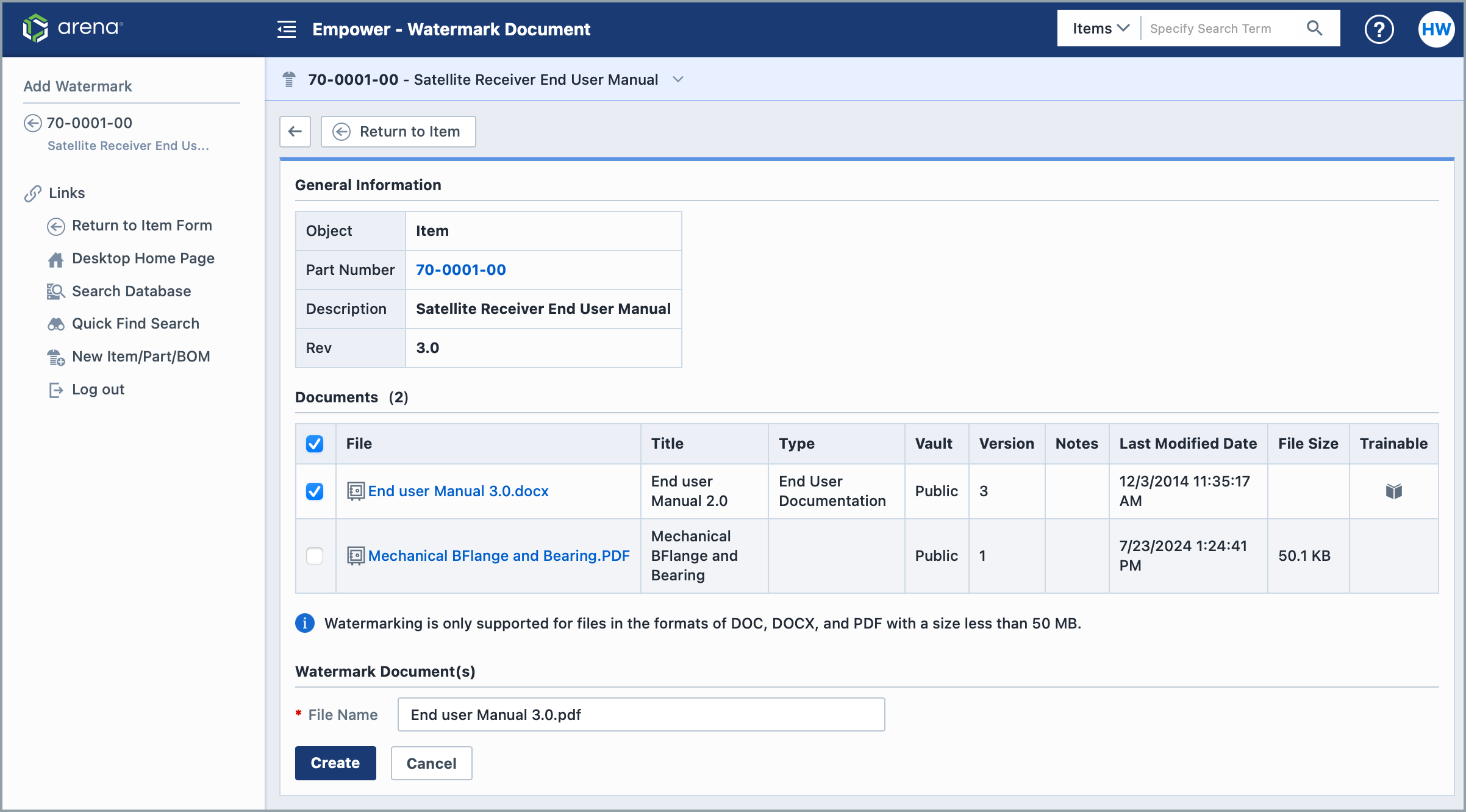
- When finished, click Create.
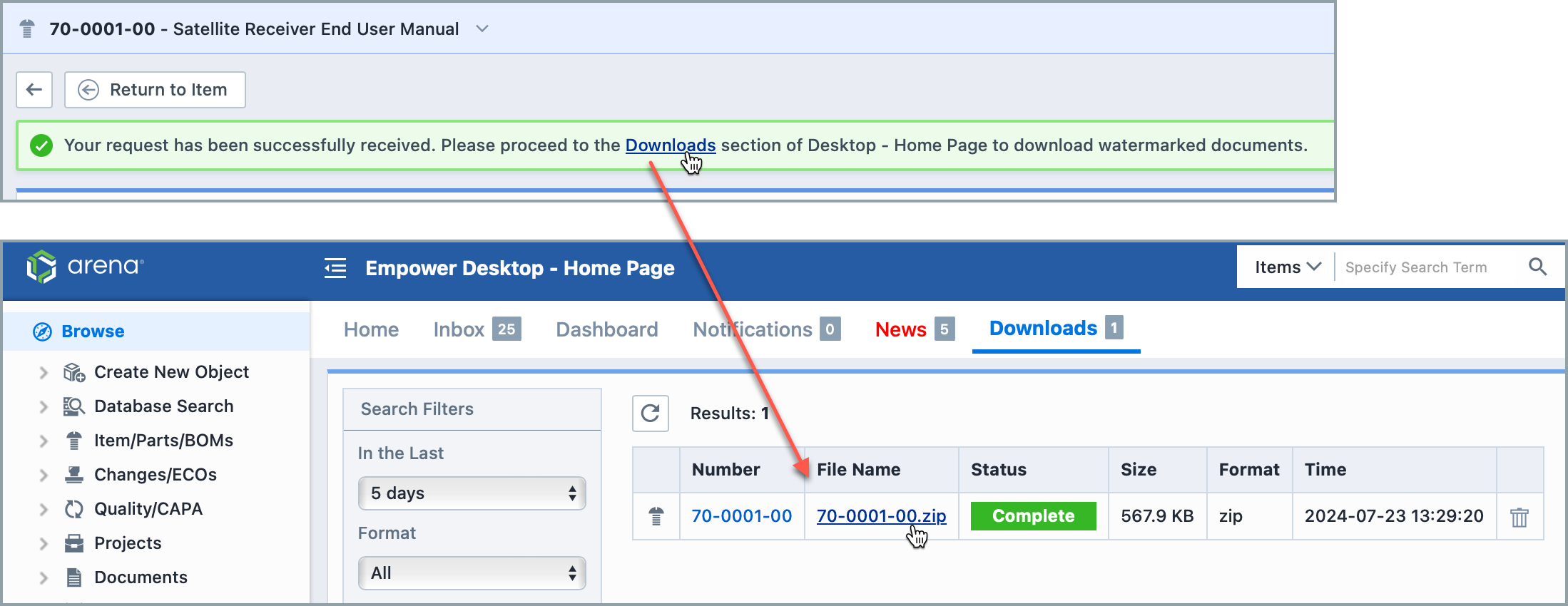
- A message will appear stating that the watermarked documents are being generated and can be collected form the Downloads page. Click the Downloads link to go directly there.
- When the document is ready, click on its name to download it.
Configuring Watermarks
Account administrators can create and manage watermark templates for their workspace. For setup instructions, see Configuring Watermarks.