Configuring Watermarks
Configuring Watermarks
Watermarking allows administrators to create an Overlay, Header, and Footer that can be applied to documents in their system. Watermarks can be applied to all .pdf, .doc, and .docx files. These watermarks can include dynamic variables related to the Part Revision that the document is related to, including the Part's Number, Revision, Revision Effective From Date, Lifecycle, Pending Changes, and the document's Print Date.
Administrators can create distinct watermark templates and assign a different template, along with its unique signature watermark, to each document type. This allows different types of documents to carry different watermark configurations tailored to their purpose.
Requirement: Watermarking requires the Watermark license for your workspace. Check to see if you have this license in the Empower License Monitor. If not active, please talk with Empower Customer Support to add it. ![Empower Watermark license]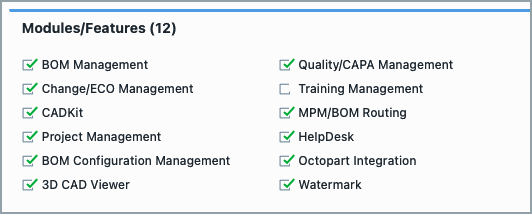
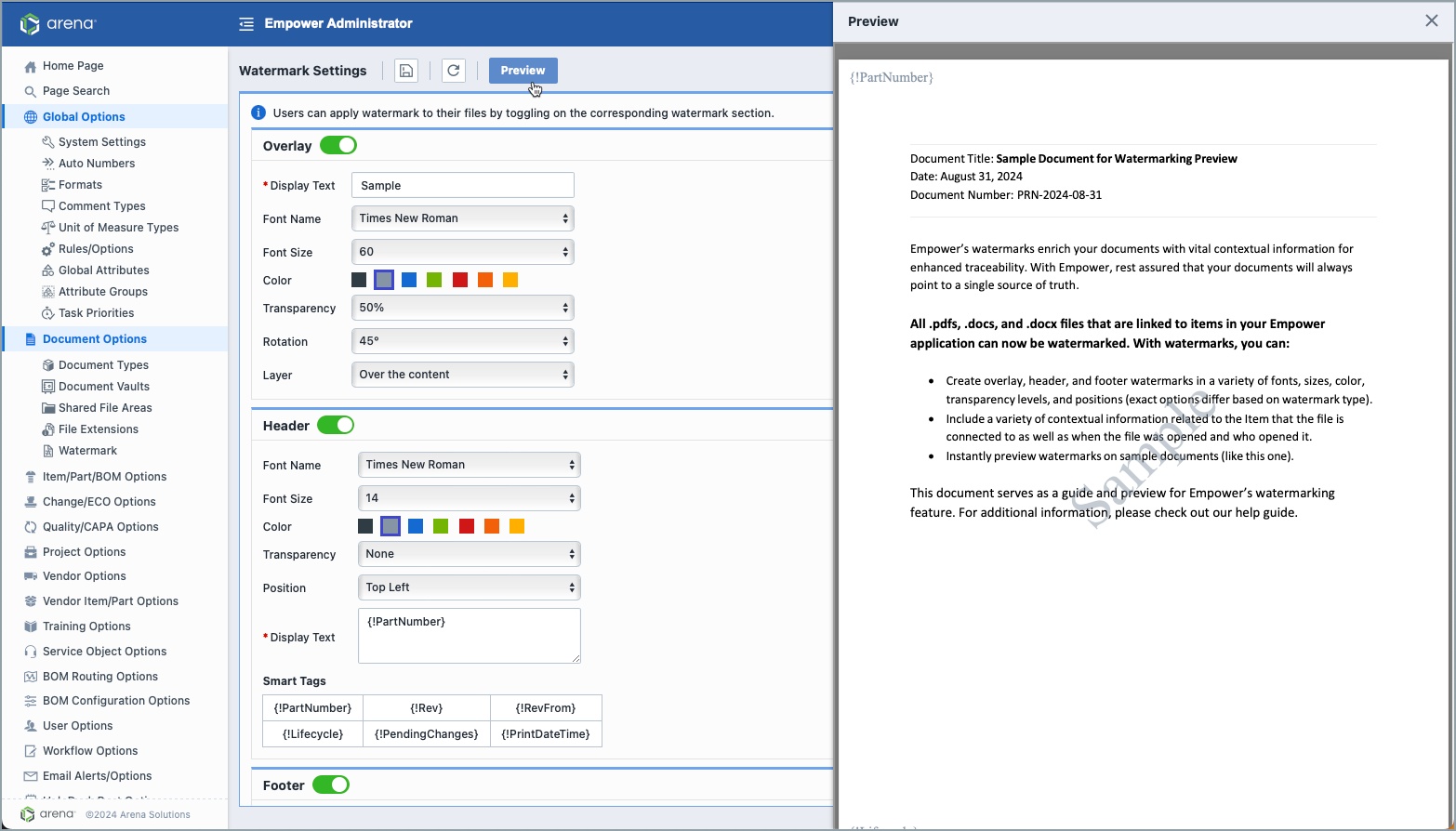
Here is an example of a watermark with an overlay, header, and footer that incorporate dynamic variables: 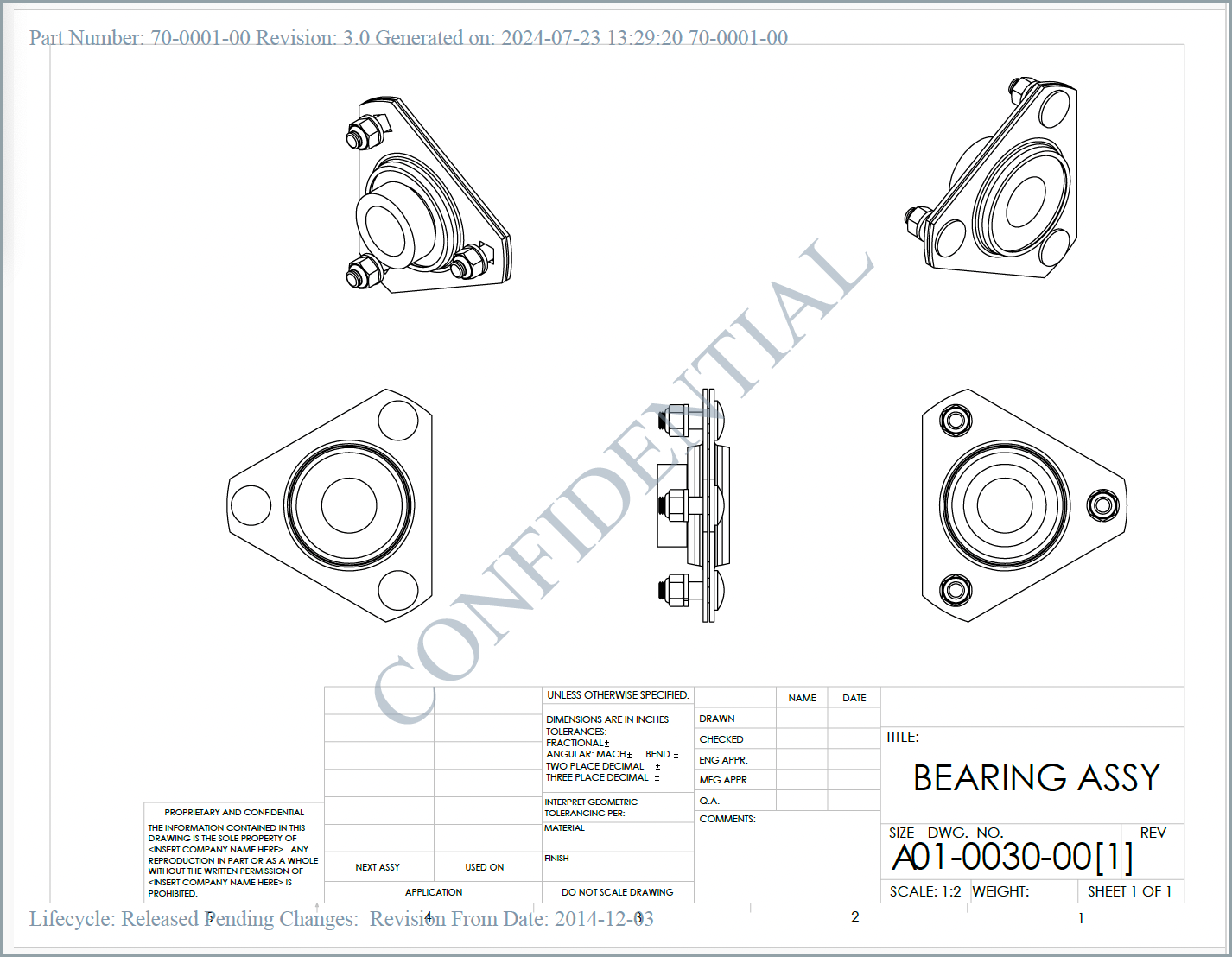
Note: Watermarking requires documents to be sent from your on premises server to a secure Arena online system for processing.
Creating a Watermark
Watermarks can be made from Empower Administrator > Document Options > Watermark: 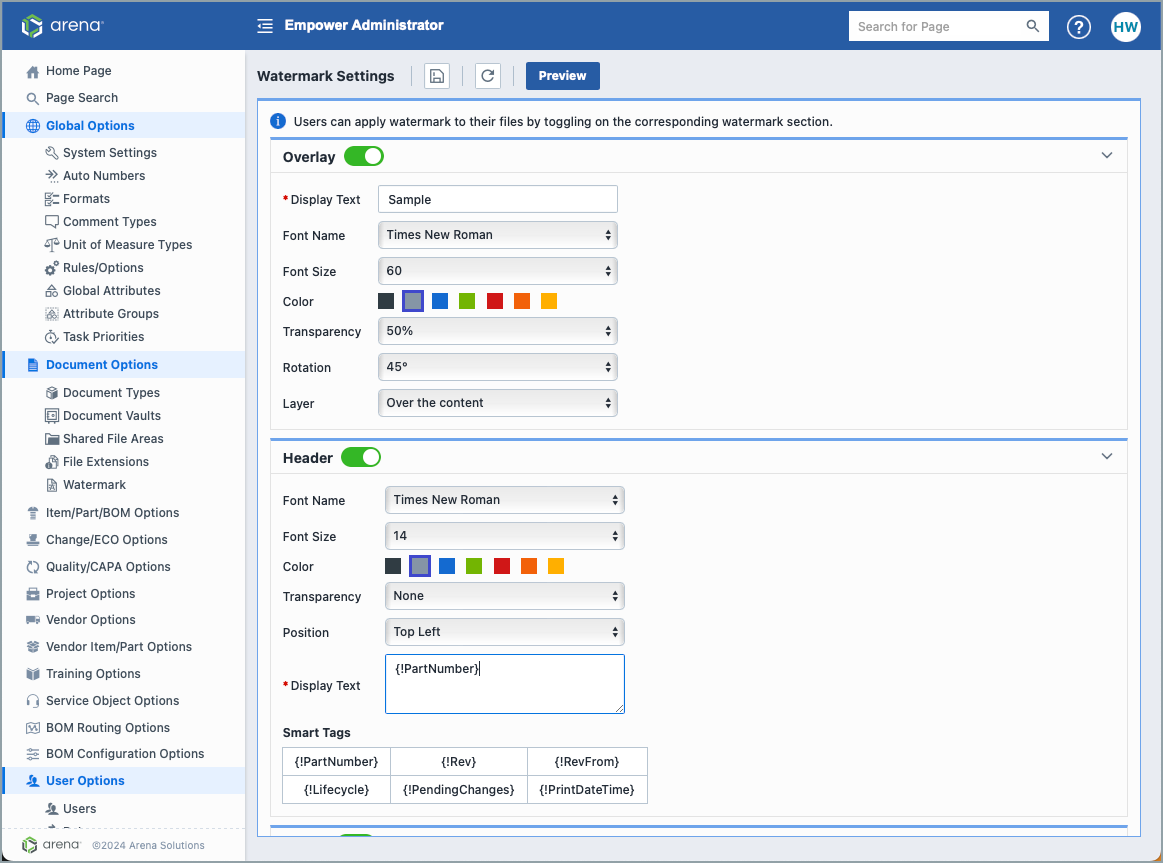
- Clicking on a section header will expand it.
- Notice the toggles next to Overlay, Header, and Footer. Toggling those to green and then saving your watermark will enable them and they will appear on watermarked documents.
- Preview: Click this button to view how your watermark will look in your documents.
Watermark Templates
Administrators can create multiple watermark templates, each with its own unique overlay, header, and footer configuration. Each template can then be assigned to one or more document types, allowing different types of documents to display different watermarks.
Creating and Managing Templates
To create a new watermark template, navigate to Empower Administrator > Document Options > Watermark. From here, you can:
- Create a new template by defining its overlay, header, and footer settings.
- Edit an existing template to update its configuration.
- Preview a template to see how it will appear on documents.
Assigning Watermark Templates to Document Types
Each document type can be assigned its own watermark template. To assign a template:
- Navigate to Empower Administrator > Document Options.
- In the Document Types table, locate the Watermark Template column. This column indicates the watermark template currently assigned to each document type.
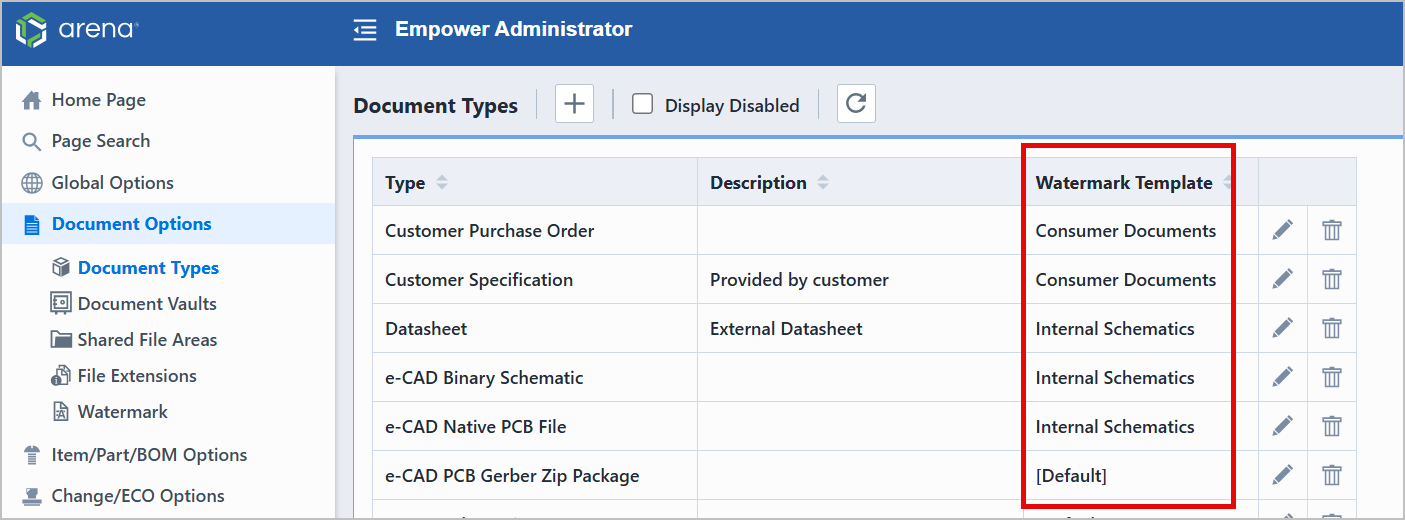
- Select the desired watermark template for each document type.
When a document is watermarked, the system will apply the template assigned to that document's type.
Overlays
Overlays are watermarks that sit above or below the content of your document. They can be styled in the following ways:
- Display Text: This text will become the watermark.
- Font Name: Style your text with a Helvetica, Times New Roman, Ariel, or Futura font.
- Font Size: Select a font size from 8-70 points.
- Color: Choose one of seven colors to match your company's brand.
- Transparency: Higher levels of transparency will make the text below the overlay easier to read but may make the overlay less noticeable.
- Rotation: sets the angle of the Overlay text on the page.
- Layer: Decide whether you want the watermark to be placed above or below the content in your documents.
- Smart Tags: Smart Tags dynamically display information related to the Part that the document is associated with. Smart Tags can display the Part's Number, Revision, Revision From Date, Part Lifecycle, Pending Changes, and the date and time that the document was generated. Click on a Smart Tag to bring it into the Display Text box. When opening a document from a specific Part Revision Page, information related to that Revision will be shown. When opening a document from outside of a Part's Page, these Tags will display information about the most recent Part that the document is associated with.
Headers and Footers
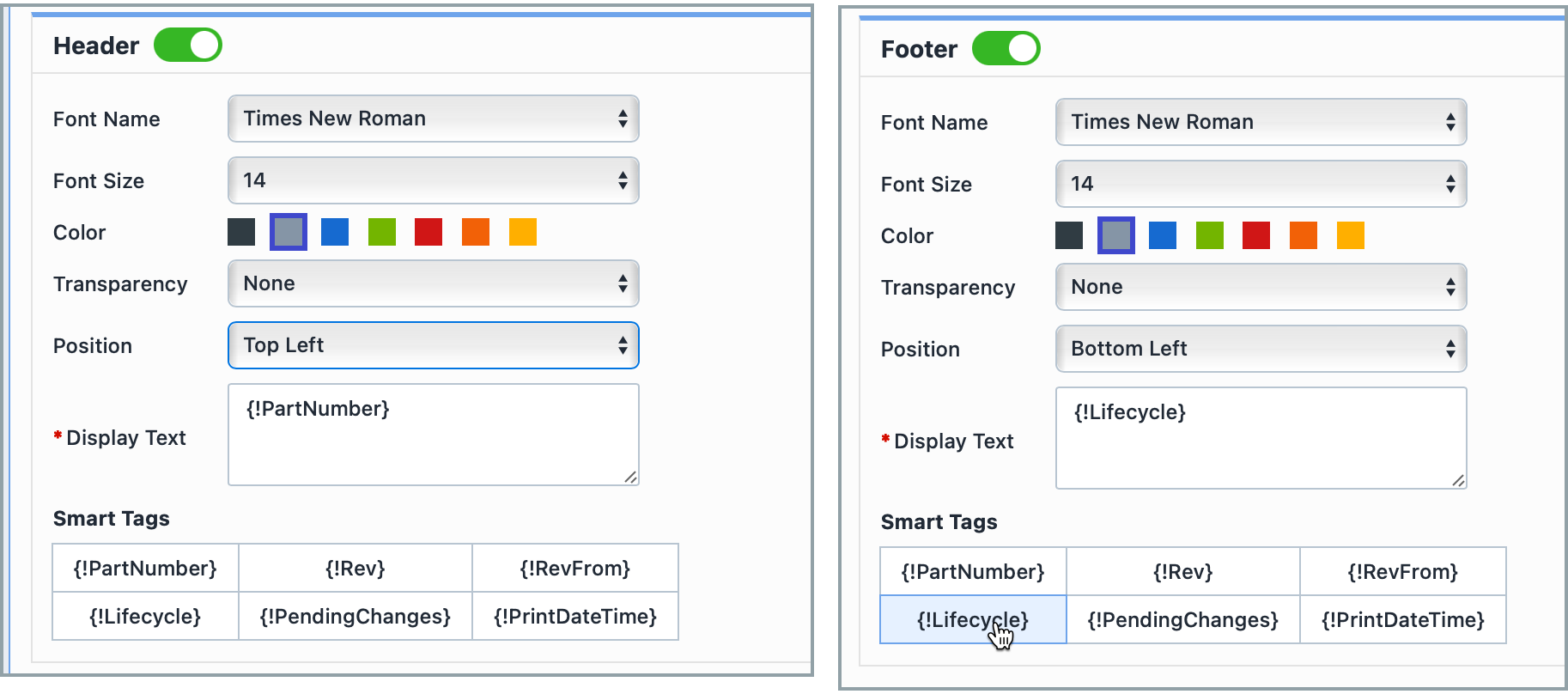 Headers includes text that appears at the top of each page of your documents. Footers include text displayed at the bottom of each page. Both can be styled in the following ways:
- Font Name: Style your text with a Helvetica, Times New Roman, Ariel, or Futura font.
- Font Size: Select a font size from 8-70 points.
- Color: Choose one of seven colors to match your company's brand.
- Transparency: Higher levels of transparency will make the text below the overlay easier to read but may make the overlay less noticeable.
- Position: Header text can be displayed in the Top Left, Top Center, or Top Right of your documents. Footers can be displayed in the Bottom Left, Bottom Center, or Bottom Right of your documents.
- Display Text: This text will become the Header / Footer.
- Smart Tags: Smart Tags dynamically display information related to the Part that the document is associated with. Smart Tags can display the Parts Number, Revision, Revision From Date, Part Lifecycle, Pending Changes, and the date and time that the document was generated. Click on a Smart Tag to bring it into the Display Text Box. When opening a document from a specific Part Revision Page, information related to that Revision will be shown. When opening a document from outside of a Parts Page, these Tags will display information about the most recent Part that the document is associated with.
- Attributes: Attributes allow you to include additional metadata in your watermark's header and footer. Unlike Smart Tags, which display Part-level revision information, Attributes can surface other object-specific or user-defined properties. Click on an Attribute to insert it into the Display Text box, where it will dynamically resolve when the watermark is generated.
Workspace Rules and User Permissions
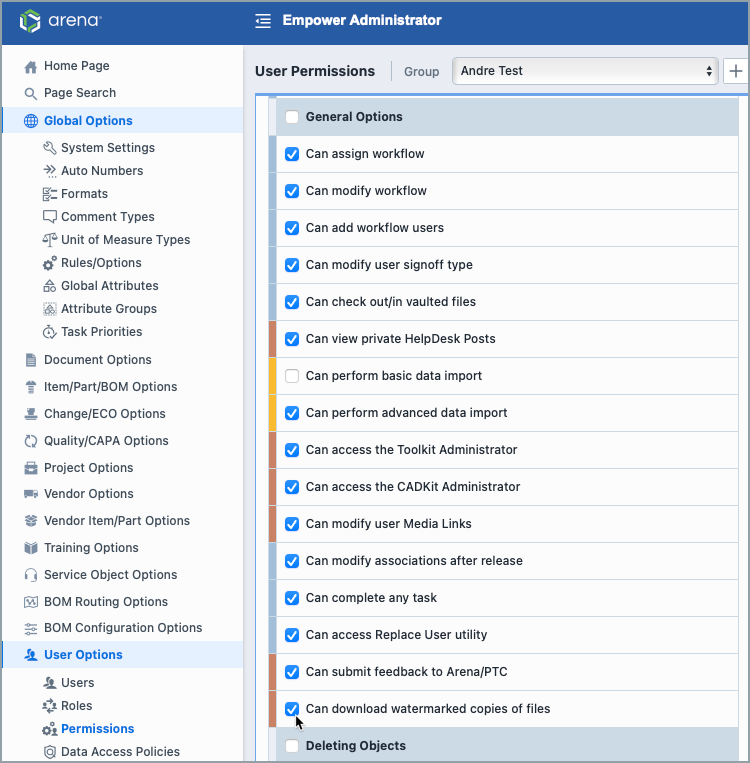
Workspace Rule: Administrators can select whether to turn on the watermarking feature for their workspaces. From Global Options> Rules/Options > Document Options, select "Enable users to download watermarked copies of files." 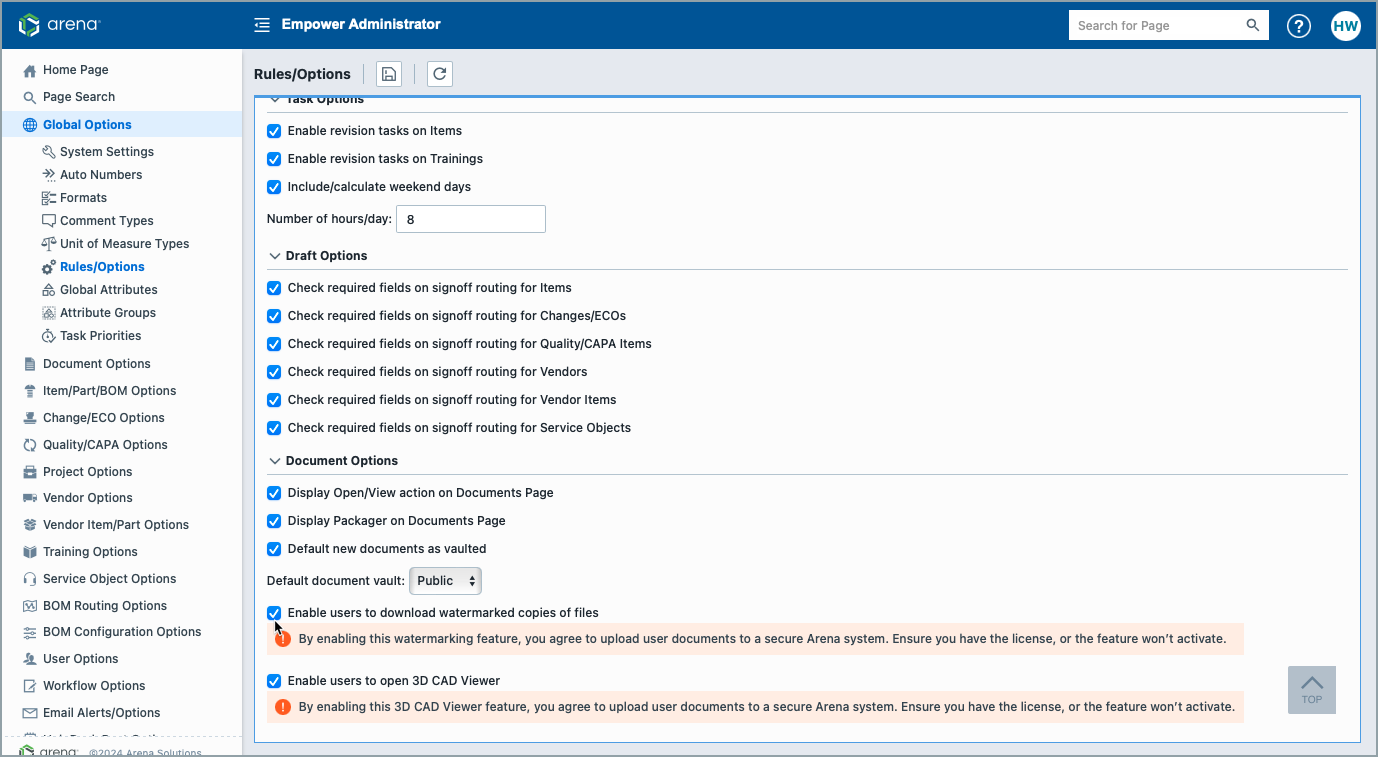
User Permissions: Administrators can select which usergroups can access watermarked documents. From User Options > Permissions > General Options, select "Can download watermarked copies of files."