Email Server
Email Server
Overview
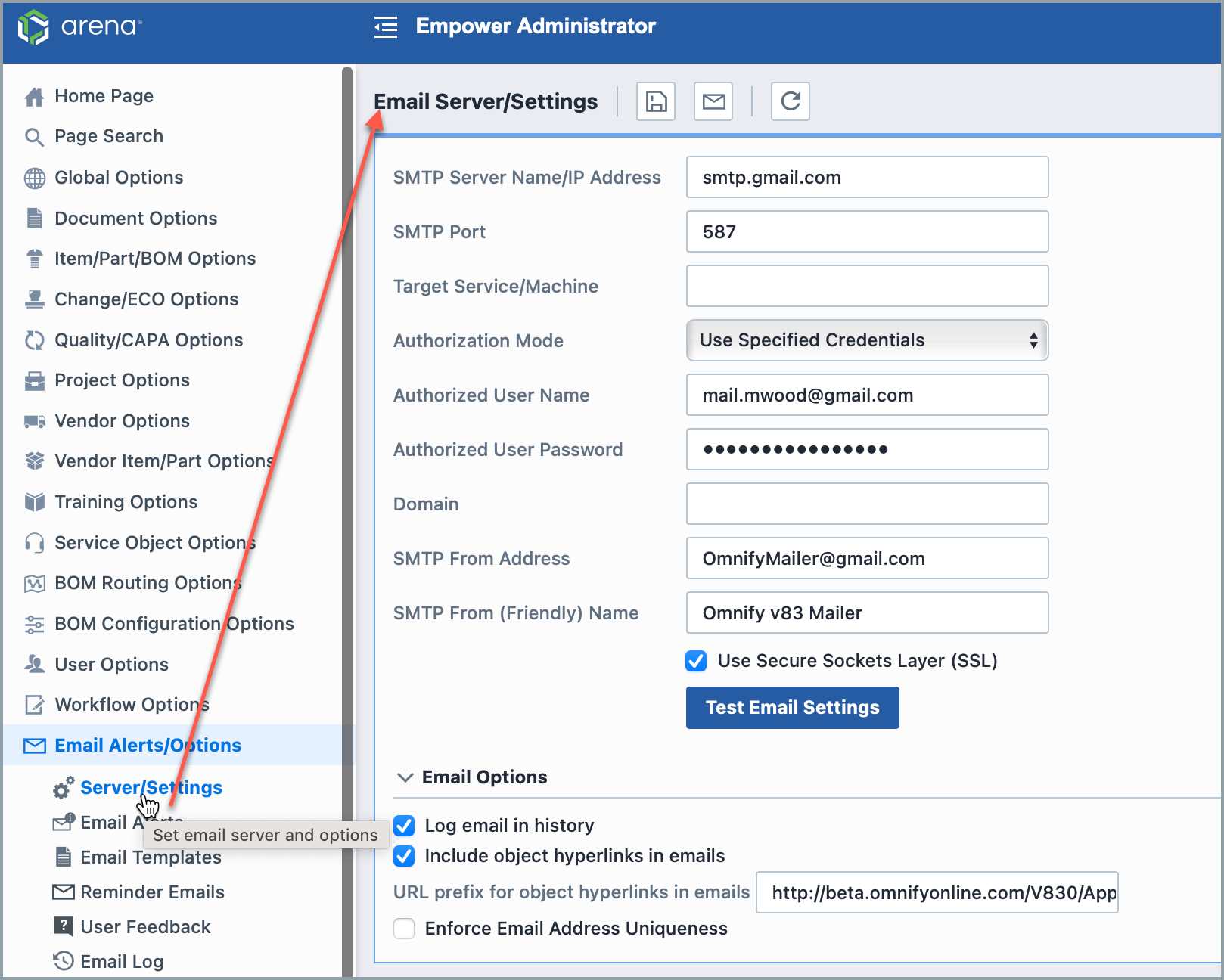
The Email Server/Settings page contains the following settings:
| Option | Description |
|---|---|
| SMTP Server Name/IP Address | SMTP mail server name or IP Address |
| SMTP Port | TCP/IP port for SMPT (mail) traffic on server |
| Target Service/Machine | The Service Provider Name (SPN) to use for authentication when using extended protection |
| Authorization Mode | Use Specified Credentials - Uses the user name and password specified in the Administrator for authentication Use Network Credentials - Uses the currently logged user (on server) for authentication Ignore Credentials - Does not use authentication |
| Authorized User Name | The user name to be used for SMTP server authentication |
| Authorized Password | The password to be used for SMTP server authentication |
| Domain | The domain to be used for SMTP server authentication |
| SMTP From Address | The email address of the SMTP mail sender |
| SMTP From (Friendly) Name | The display name of the SMTP mail sender |
| Use Secure Sockets Layer (SSL) | Check this option if your mail server uses Secure Sockets Layer (SSL) |
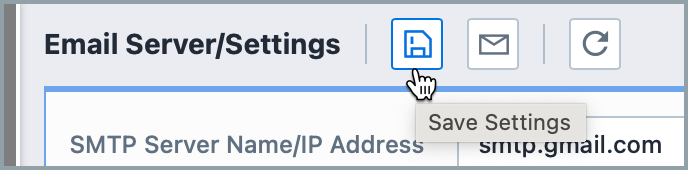
Once all settings have been assigned, click the Save toolbar button to save the settings.
Email Test
You can test the settings by clicking the Test Email Settings button. This will invoke the Test Email Setting panel:
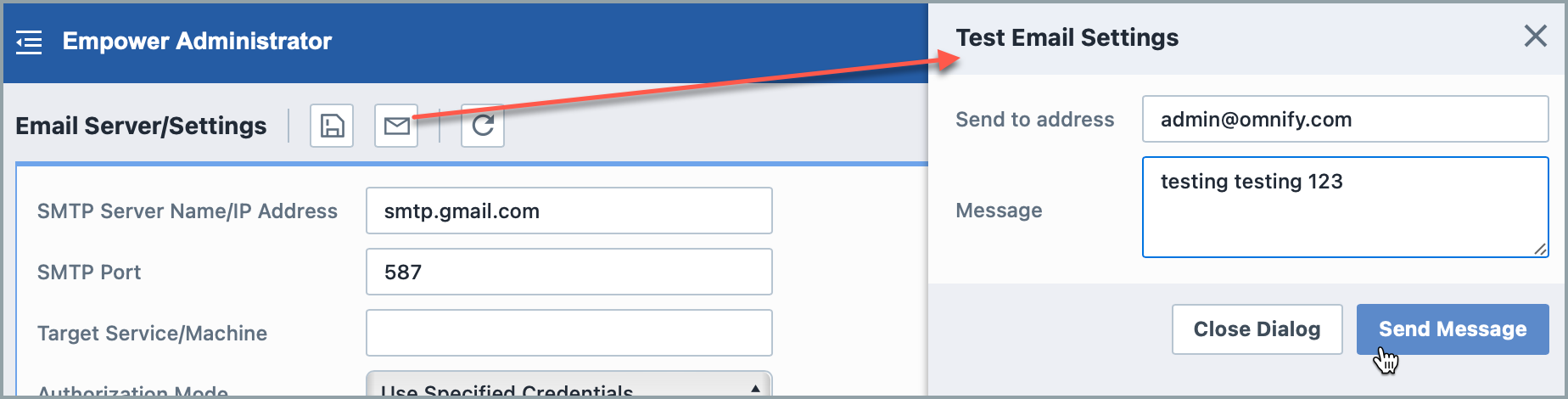
To test the settings, specify an email address and message content and click the Send Email button.
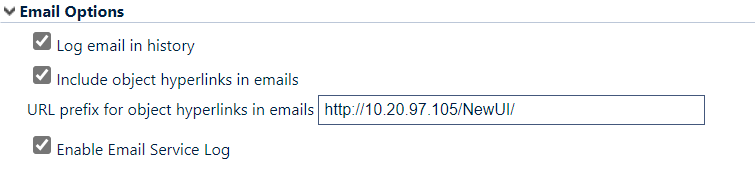
Email Options
| Option | Description |
|---|---|
| Log email in history | If this option is enabled, automated Email Alerts generated by the system will be recorded in the object history. This option is enabled by default. |
| Include object hyperlinks in emails | If this option is enabled, emails generated by the system will include a hyperlink. When the email recipient clicks on the hyperlink, a web browser will launch and take the user directly to the Empower object that is the subject of the email. This option is enabled by default. |
| URL prefix for object hyperlinks in emails | This field denotes the URL prefix for the Hyperlink. By default it should contain the name of the empower server in the following format: http://ServerName/WebSiteName/Apps/Desktop. This setting should be used in certain circumstances such as when an alias is used for the Empower server. |
| Enable Email Service Log | If this option is enabled, Email Alerts generated by the system will be recorded in Email Log. |
Empower OAuth and Microsoft Office 365
Empower supports OAuth if you use Microsoft Office365 to send emails.
This page documents the steps necessary to set up OAuth using Azure Active Directory.
Azure Active Directory Configurations
Register an App in Azure AD
- Sign in to your organization's Azure Portal.
- Navigate to Azure Active Directory > App registrations.
- Click New registration and enter the following:
- Name: e.g., Empower SMTP OAuth Mailer
- Supported account types: Accounts in this organizational directory only
- After registration, write down the values for Application (Client) ID and Directory (Tenant) ID.
Generate a Client Secret
- Inside your app registration, go to Certificates & secrets.
- Click New client secret, enter a description for your own reference and an expiration date. We recommend configuring expiration date of 24 months into the future.)
- Copy the secret value immediately—it will be hidden after leaving the page.
Configure API Permissions
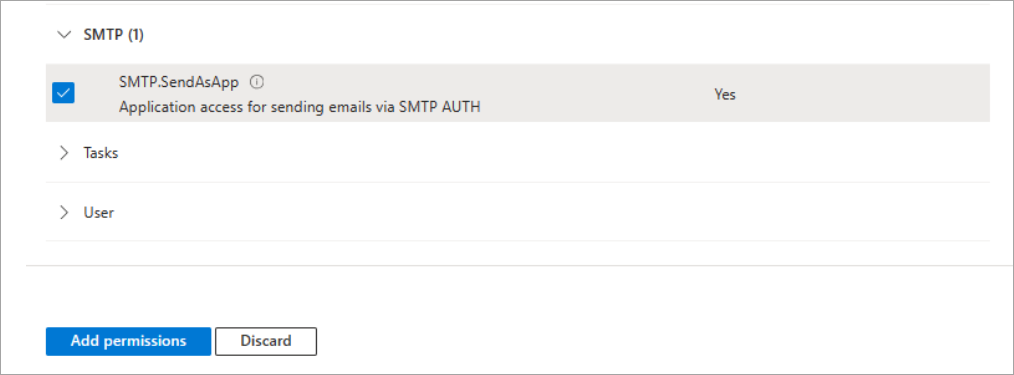
- Within the same app registration workflow, go to API permissions > Add a permission.
- Select APIs my organization uses and find Office 365 Exchange Online.
- Choose Application permissions.
- Add SMTP.SendAsApp permission.
- Click Grant admin consent to enable it for your tenant.
Grant the App Permission to Send as a Specific Mailbox
The app does not automatically have Send As permissions. Assign mailbox permissions via Exchange Online PowerShell.
Step 1: Register the App as a Service Principal
Connect-ExchangeOnline
New-ServicePrincipal -AppId "<CLIENT_ID>"
Step 2: Grant FullAccess and SendAs to the Target Mailbox
$sp = Get-ServicePrincipal -AppId "<CLIENT_ID>"
Add-MailboxPermission -Identity "mailbox@yourdomain.com" -User $sp.ObjectId -AccessRights FullAccess
Add-RecipientPermission -Identity "mailbox@yourdomain.com" -Trustee $sp.ObjectId -AccessRights SendAs
Permission changes may take 1–2 hours to propagate.
Empower Email Settings
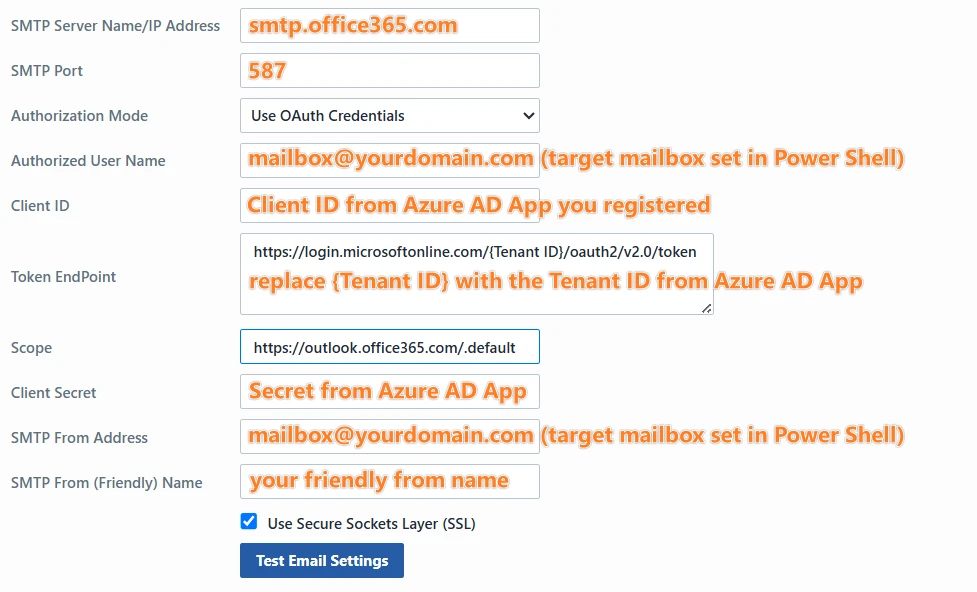
On the Empower Administrator Email Server/Setting page, choose “Use OAuth Credentials” for Authorization Mode.
Follow the instructions on the configuration screen.
Empower and Gmail App Passwords (smtp.gmail.com)
If you use Gmail, you can set up App Passwords in order to use SMTP to send emails.
Create App Password
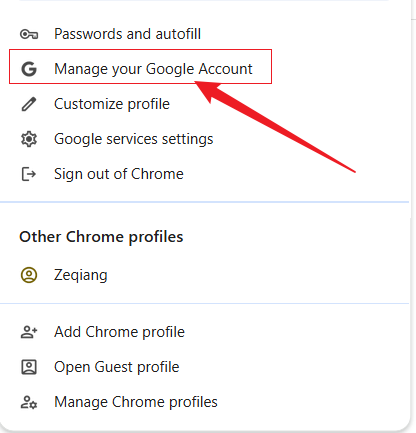
- Log in to Google with your Google account. Click your profile picture, then select Manage your Google Account.
- Click the Security tab on the left. Enable 2-Step Verification. If this is your first time, follow the instructions to complete verification.
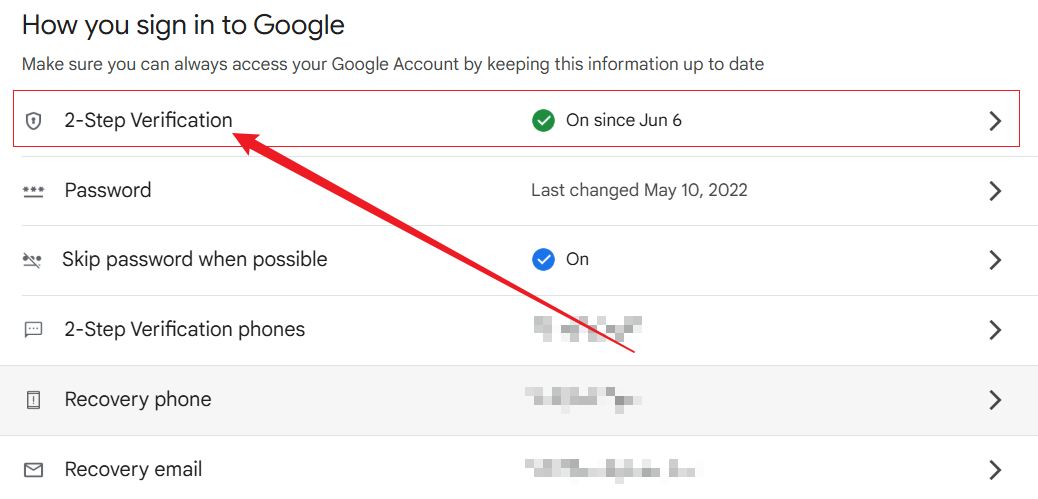
After enabling 2-Step Verification, go to the Home tab on the left. Type "app password" in the search box and press Enter.
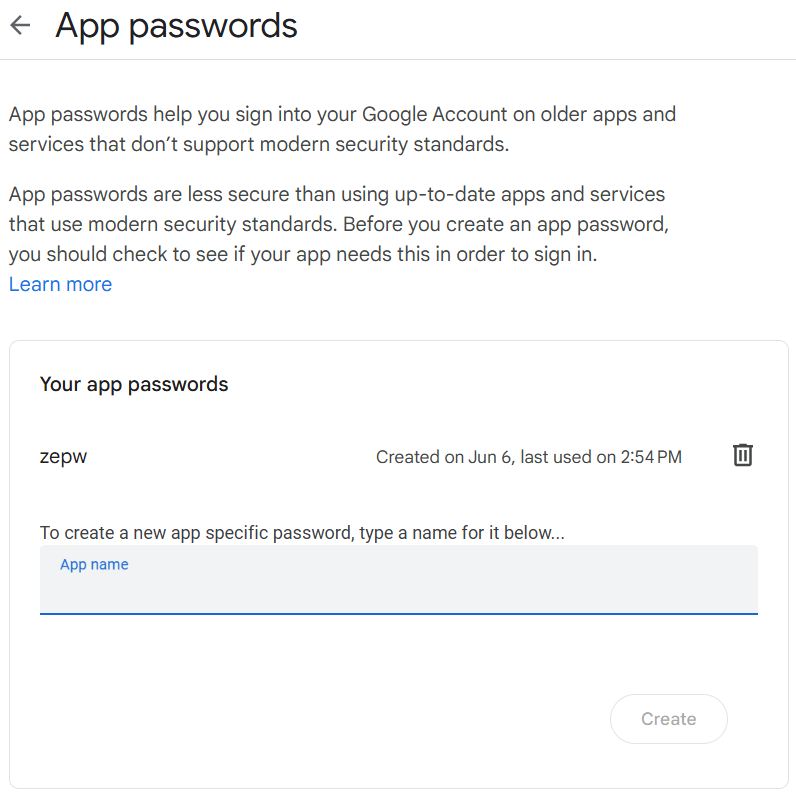
Enter a name for the App Password, then click Create to generate it.
The app password will be shown once. Save it immediately, as you will not see it again. You can create more than one app password and naming them helps you remember their purposes.
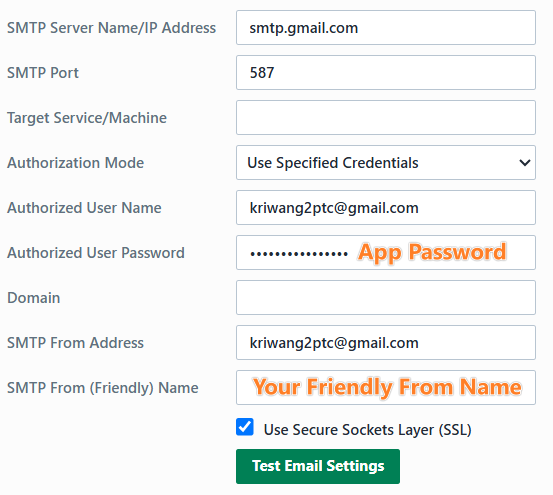
Settings on the Empower Administrator email settings page