Checked-out Documents
Checked-out Documents
Overview
The Checked-out Documents Report identifies documents that are currently checked out, helping administrators track pending edits and resolve checkout conflicts.
You can generate a Checked-out Documents Report for the following object types:
- Items/Parts/BOMs
- Changes/ECOs
- Quality/CAPA
- Projects
- Vendors
- Vendor Items
- Service Objects
- MPM/Routing
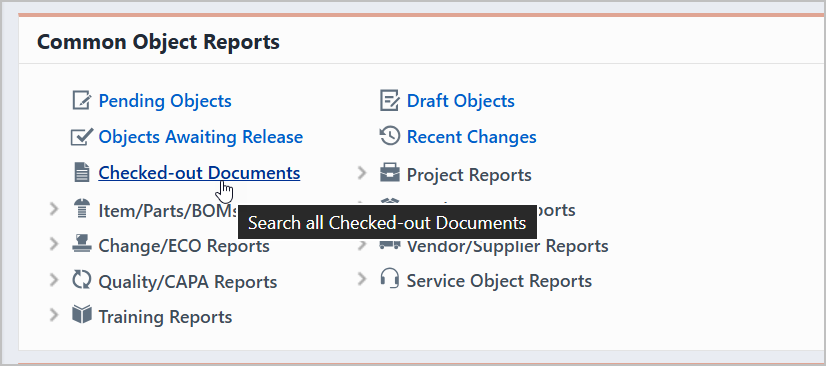
To view the Checked-out Documents report, select the specific link from the Standard Reports section or Common Object Reports of the Home Page.
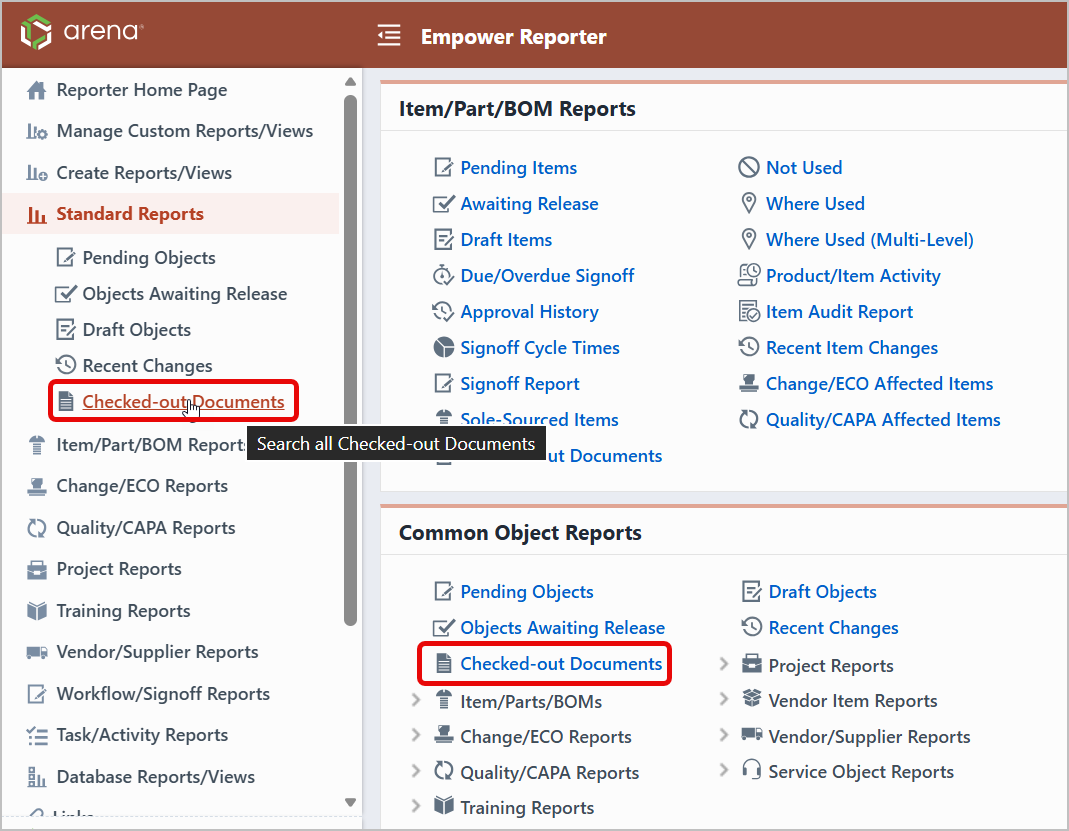
Accessing/Launching
You can launch the Checked-out Documents Report from the Empower Reporter navigator.
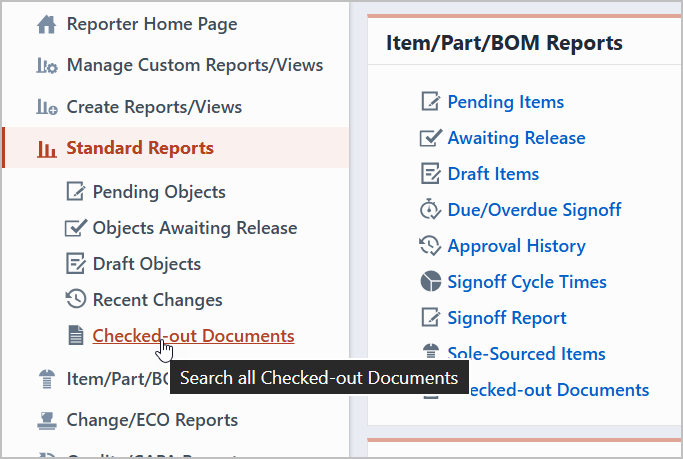
You can also launch the report from the Empower Reporter Home Page > Common Object Reports section.
Report Basics
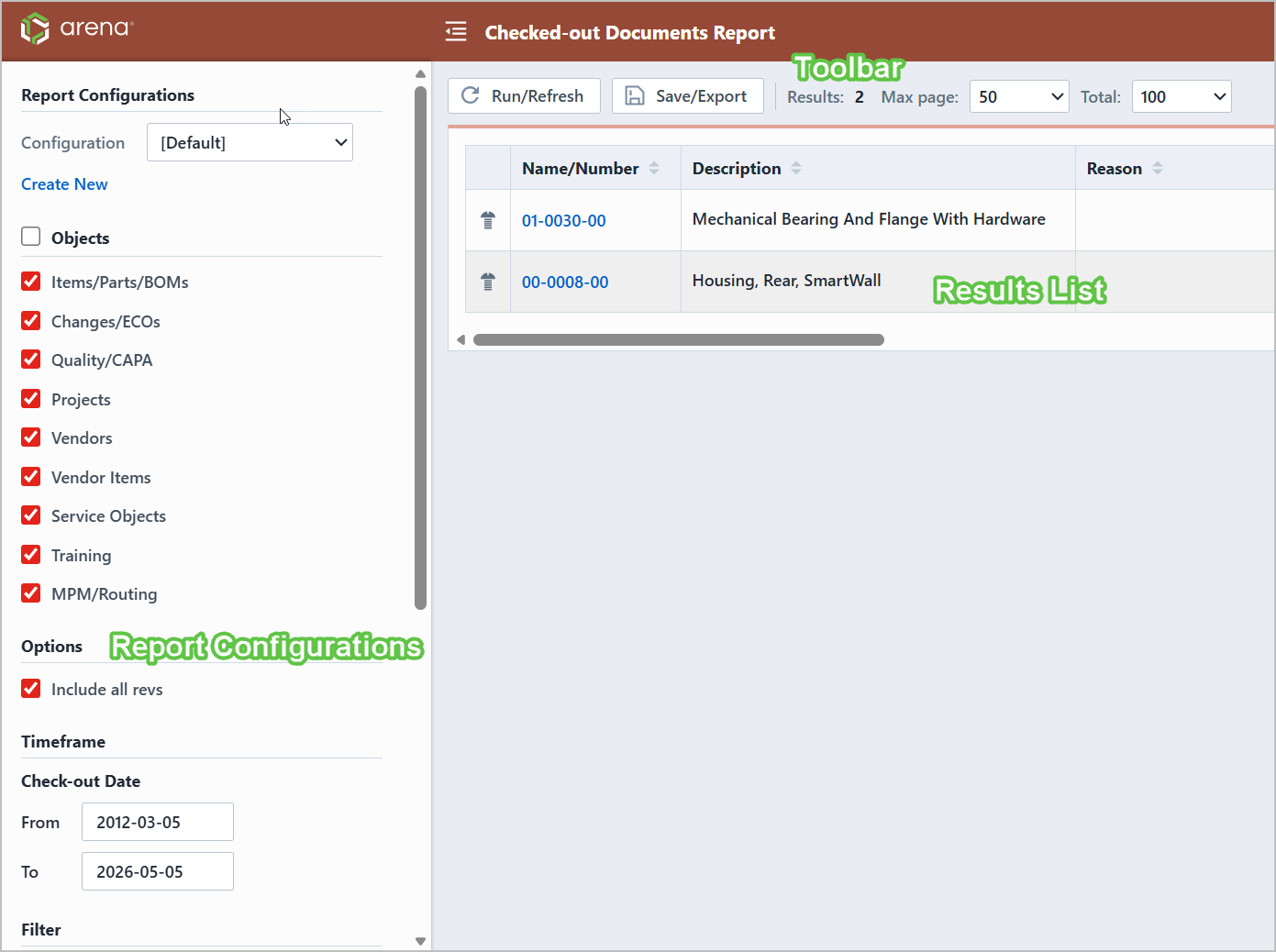
The Checked-out Documents Report contains the following key areas:
Report Options
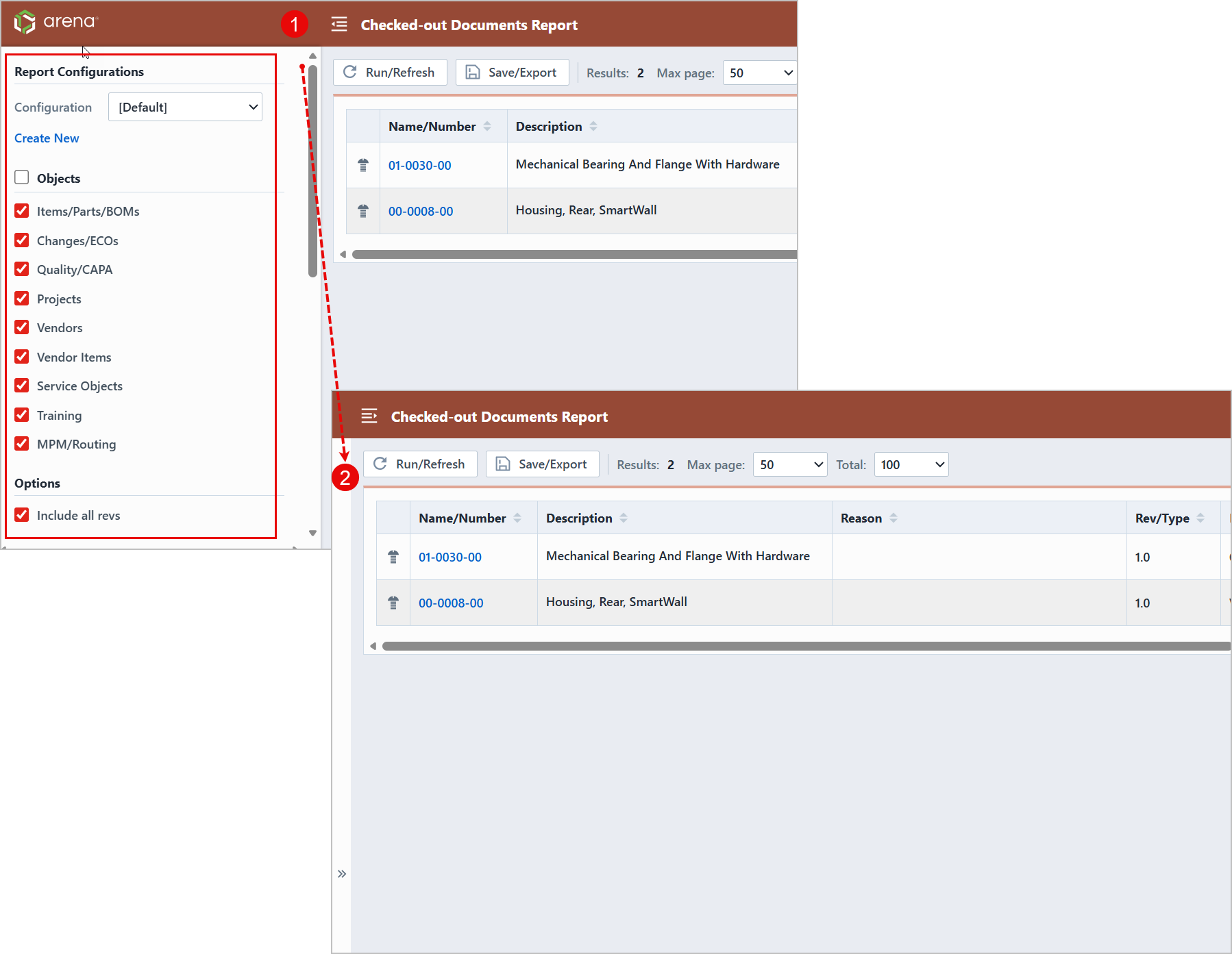
The Report Configuration navigation panel contains Objects section that allows you to select which objects to include in the report. You can display and hide the Report Configuration panel by selecting the Show/Hide Navigation Menu button.
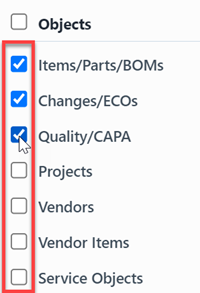
The Objects section allows you to select/check which objects you wish to include in the report.
The Include all revs check box within the Options section allows users to run a report on all revisions.
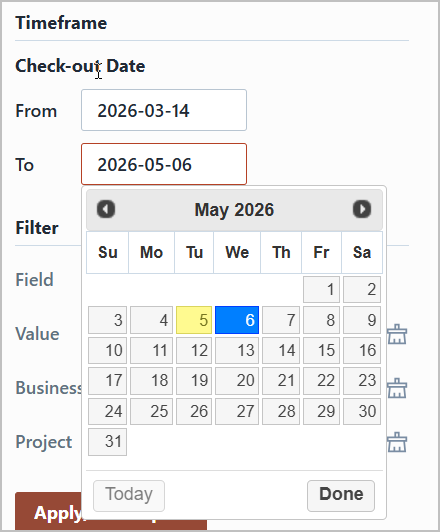
You can limit the timeframe of the report by checking the Set date limits option and then specifying date ranges.
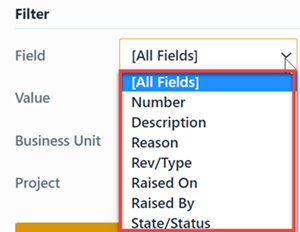
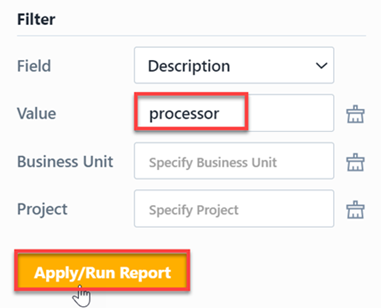
The report allows you to include specific field values to filter the report results.
Report Results
The report results includes the following column headings:

| Field | Description |
|---|---|
| Name/Number | Part/Key Number or Name for the listed object |
| Description | Description of the listed object |
| Reason | Reason field of the listed object (for Changes/ECO and Quality items) |
| Rev/Type | Revision of item or object type |
| File Name | Name of the checked-out file |
| File Title | Title of the checked-out file |
| Document Type | A classification of a document defined in Administrator |
| Vault Name | The label that identifies a document vault. |
| User | The user that checked out the file. |
| Check-out Date | The date that the file was checked out. |
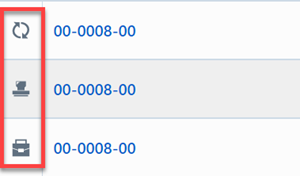
The report also contains a column that will indicate the object type.
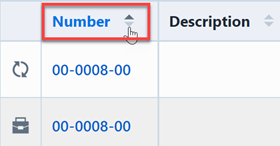
You can sort any field by clicking the header title. A sort indicator will appear.

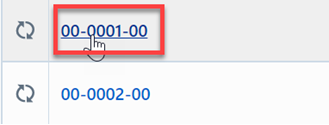
The report results will contain hyperlinks to launch the objects directly.
Results Export
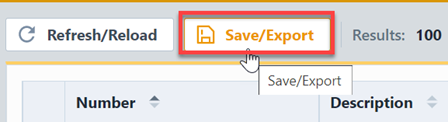
You can export the results by clicking Save/Export.
From the Export Report panel, you can select the output format and file name.
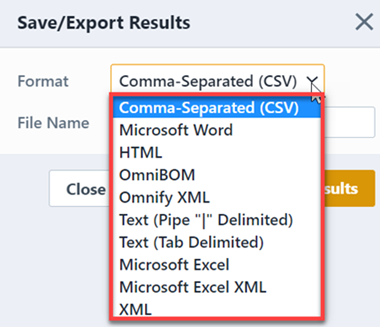
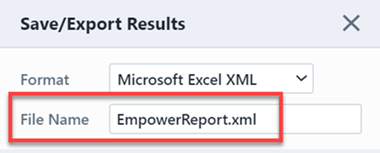
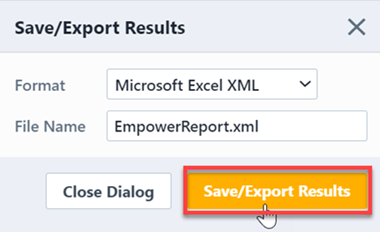
Once the format and file have been specified, click Save/Export Results to create the report.
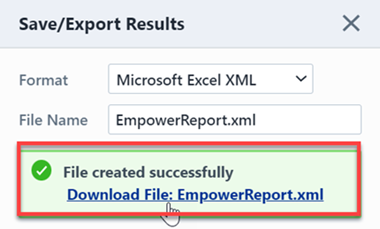
If the file is created successfully, the download link will be available. To view the report, click the download link.
Results Paging
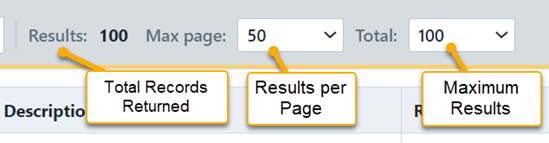
The report toolbar displays the following paging details:
- Results — The total number of records returned.
- Max page — The number of results displayed per page. Select a value from the dropdown to adjust.
- Total — The maximum number of results the report will return. Select a value from the dropdown to adjust.
If the total number of returned records exceeds the Max page value, the report displays a paging control.
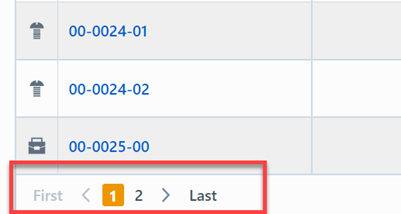
You can navigate pages by selecting a specific page number or by using the First, Previous, Next, and Last buttons.